How to Batch Process Files in Sound Forge Pro
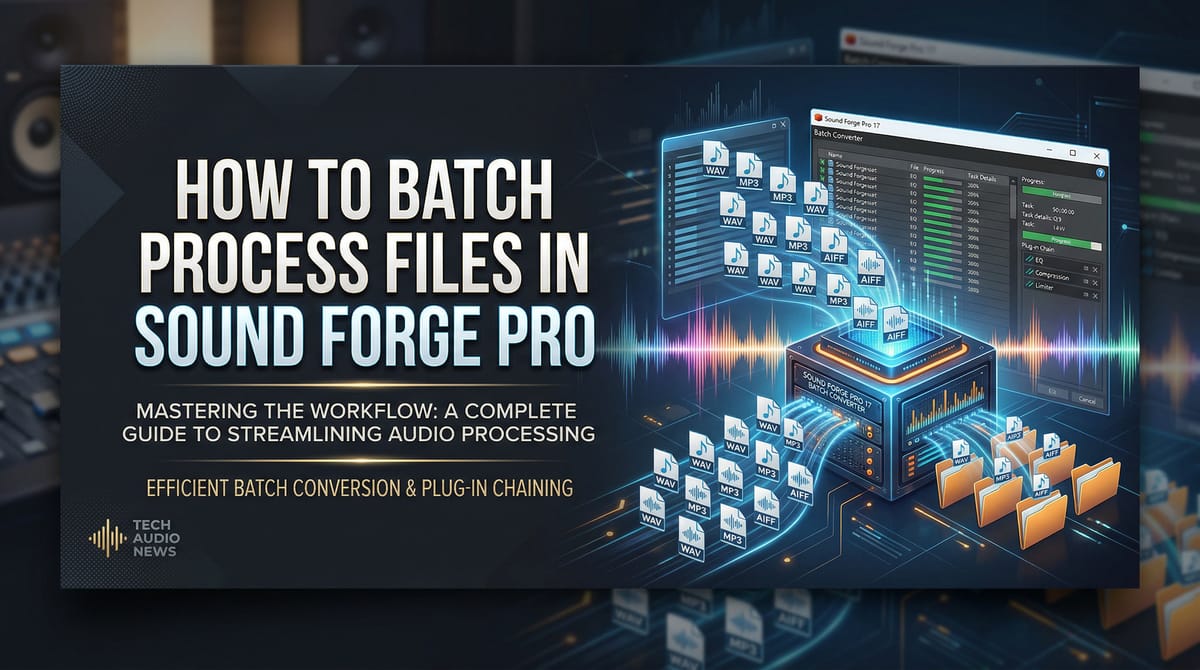
I had 47 WAV files that all needed to be converted to MP3 at 320 kbps, normalized to -14 LUFS, and dropped into a delivery folder. Doing that one by one in Sound Forge Pro would have taken the better part of an afternoon. The Batch Converter handled all 47 in about eight minutes while I made coffee.
The Batch Converter is under Tools → Batch Converter. Add your files, configure what you want done to them — format conversion, normalization, effects chain, or all three — set the output destination, and click Run Job. The rest explains the parts that actually trip people up.
Opening Batch Converter and Adding Files
Go to Tools → Batch Converter. The window opens with a file list on the left, a Process tab and Output tab on the right, and the Run Job button at the bottom.
Click Add Files and navigate to your source files, or drag them from Windows Explorer into the file list. Add Folder adds every supported audio file in a directory at once — useful when a whole project folder needs the same treatment. You can mix formats in the same job: WAV, MP3, FLAC, AIFF all work together in the same run.
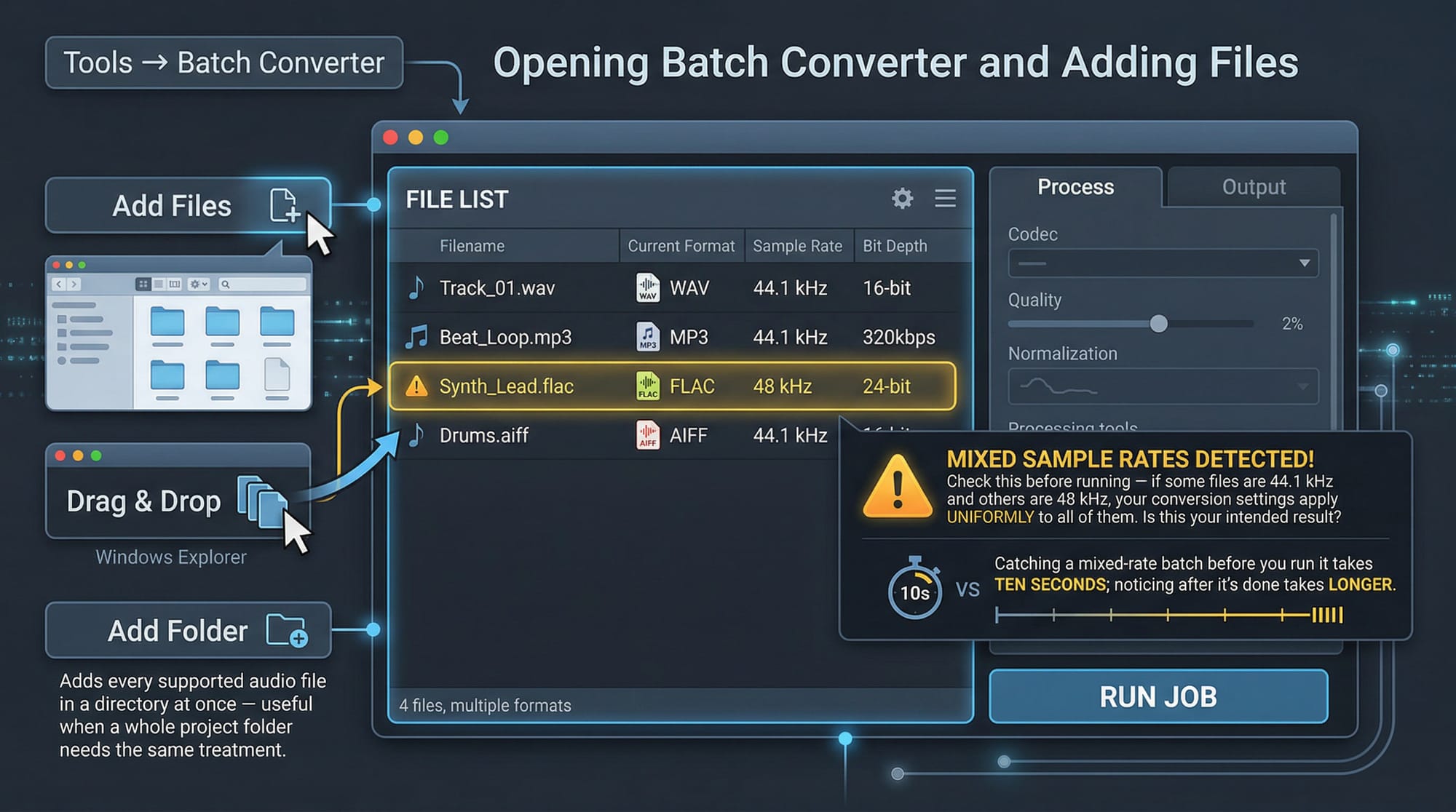
Files appear in the list with their current format, sample rate, and bit depth. Check this before running — if some files are 44.1 kHz and others are 48 kHz, your conversion settings apply uniformly to all of them. That may or may not be what you want. Catching a mixed-rate batch before you run it takes ten seconds; noticing after it's done takes longer.
The Process Tab: Format, Normalize, Effects
File Format — check this to convert output to a different format. Click Format to open the full audio format dialog: codec, sample rate, bit depth, codec-specific settings like MP3 bitrate. Same dialog as File → Save As. For MP3 delivery: 320 kbps CBR. For archival WAV: 24-bit, 44.1 or 48 kHz depending on source. Full settings walkthrough is in the MP3 export guide.
If you only need to convert formats without touching the audio itself — WAV to FLAC, 48 kHz to 44.1 kHz, 24-bit to 16-bit — File Format alone is enough. The other two options are for when you also want to process the audio during the same job.
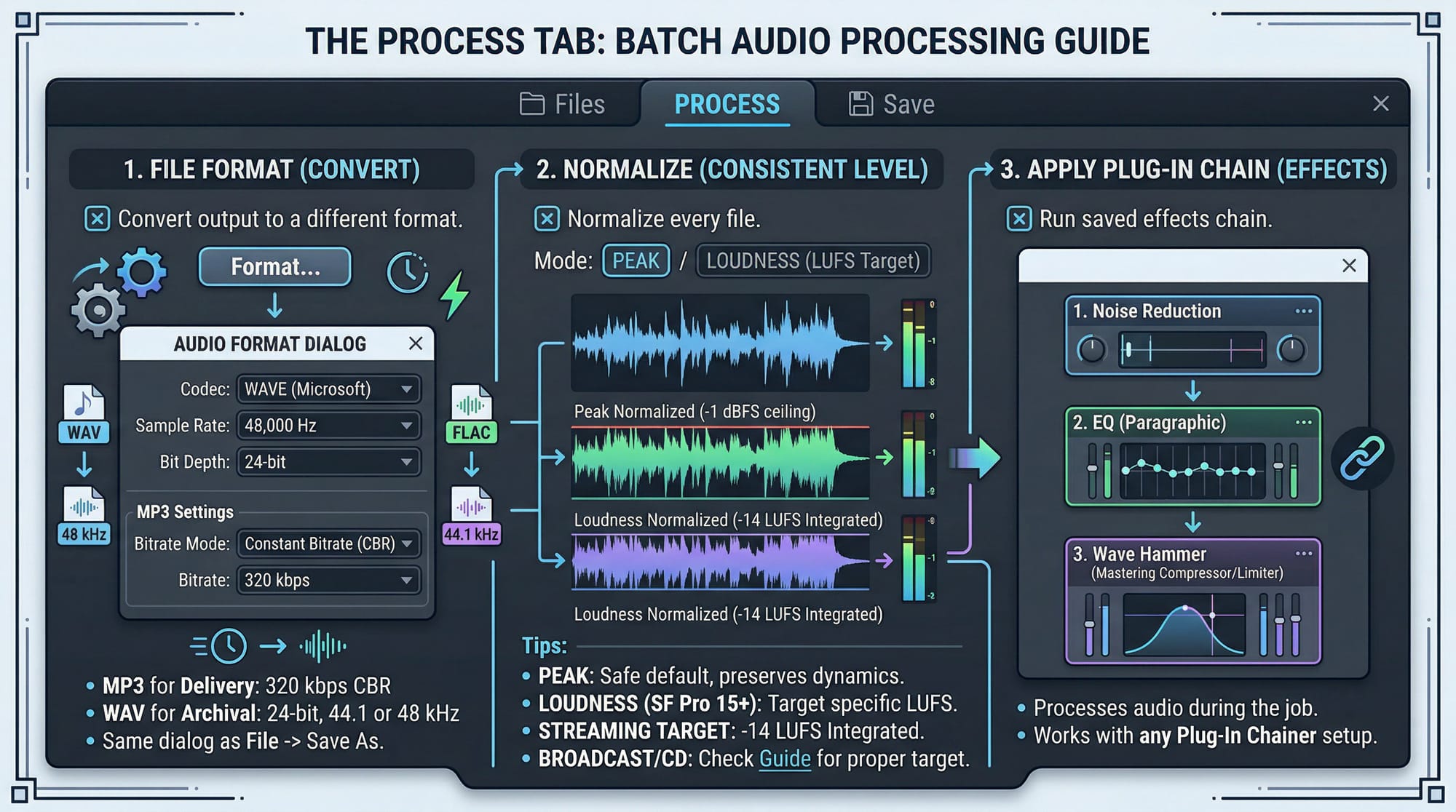
Normalize — normalizes every file to a consistent level. Choose peak (loudest peak to a dB ceiling) or loudness (LUFS target, available in SF Pro 15+). For streaming delivery: -14 LUFS integrated. For broadcast or CD: check the normalization guide for the right target and mode. Peak normalization is the safe default if you're not sure — it won't alter your dynamics, only the ceiling.
Apply Plug-in Chain — runs a saved effects chain on every file in the batch. Wave Hammer, noise reduction, EQ, any processing that works in the Plug-In Chainer works here. There's a specific setup step required for VST plugins — covered in the next section. For native effects only, you can add them directly without that extra step.
On a vinyl transfer project last winter I ran 23 recordings through a single batch job: noise reduction chain first, then normalization to -14 LUFS, then conversion to 24-bit FLAC. The whole archive went from raw transfers to clean deliverables in one unattended pass. Setting up the Plug-In Chain preset beforehand took 11 minutes; the batch itself ran while I was doing something else.
Applying VST Plugins in Batch
In Sound Forge Pro 11 and later, you can't add a VST or VST3 plugin directly to a batch job. Selecting one in the Process tab without a pre-saved chain preset fails silently or throws an error — this breaks the workflow for anyone upgrading from older Sony-era versions where it worked differently.
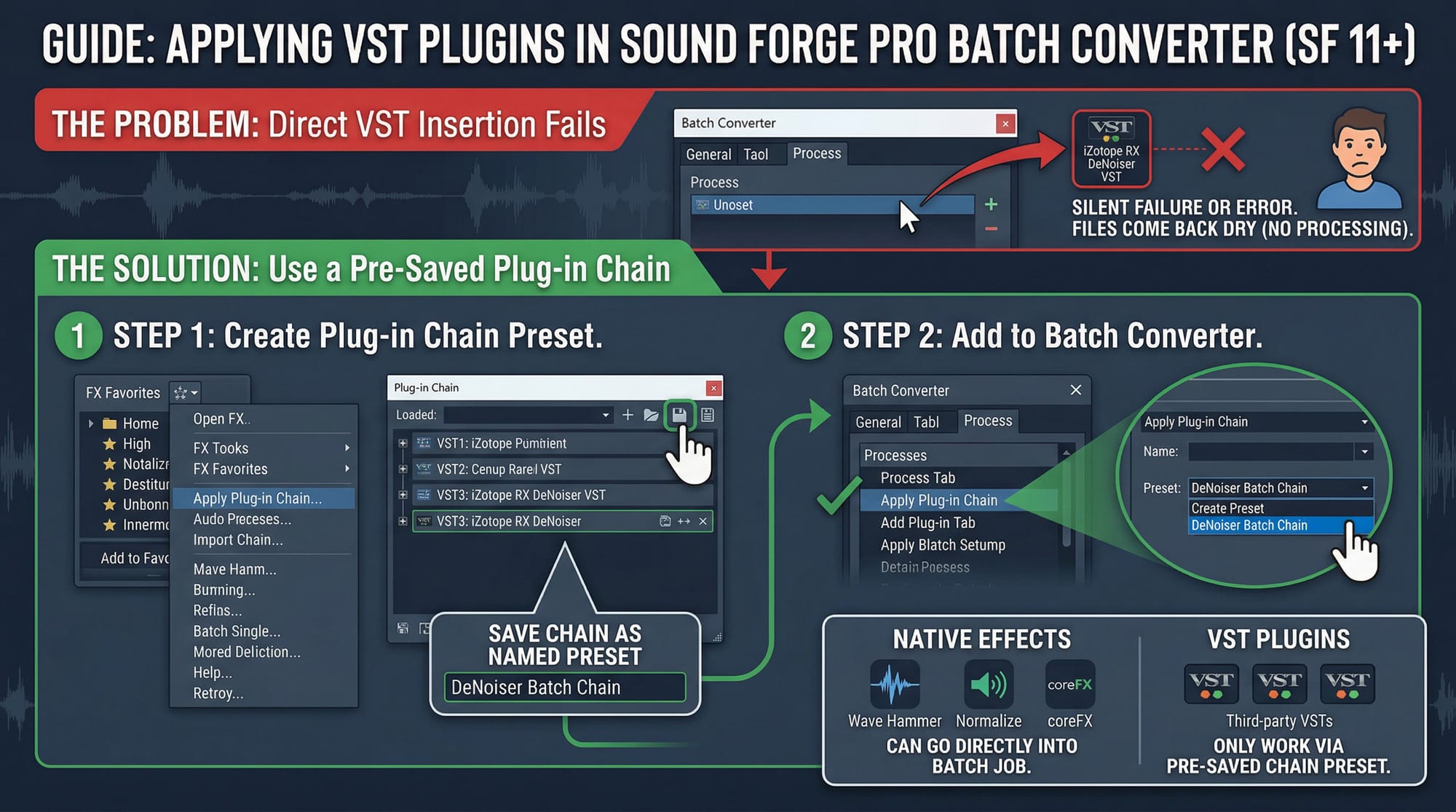
Set up your plugin chain first in FX Favorites → Apply Plug-in Chain. Add your VST plugins there, dial in the settings, and save it as a named preset. Then in Batch Converter → Process tab, select Apply Plug-in Chain and choose that saved preset from the dropdown. The UI labels vary slightly depending on your version, but the chain-preset approach works the same way from SF Pro 11 through current Boris FX versions.
I hit this the first time I tried to run iZotope RX DeNoiser in a batch job — selected it directly, ran the job, every output file came back dry. Thirty minutes of troubleshooting before I found the forum thread explaining the pre-saved chain requirement. Built the chain preset, ran again, all 18 files processed correctly.
Native effects — Wave Hammer, Normalize, coreFX processors — can go directly into a batch job without this step. The workaround is only for third-party VST and VST3 plugins. The full thread documenting this behavior is on magix.info.
The Output Tab: Destination and Naming
The Output tab controls where processed files land and what happens to filenames.
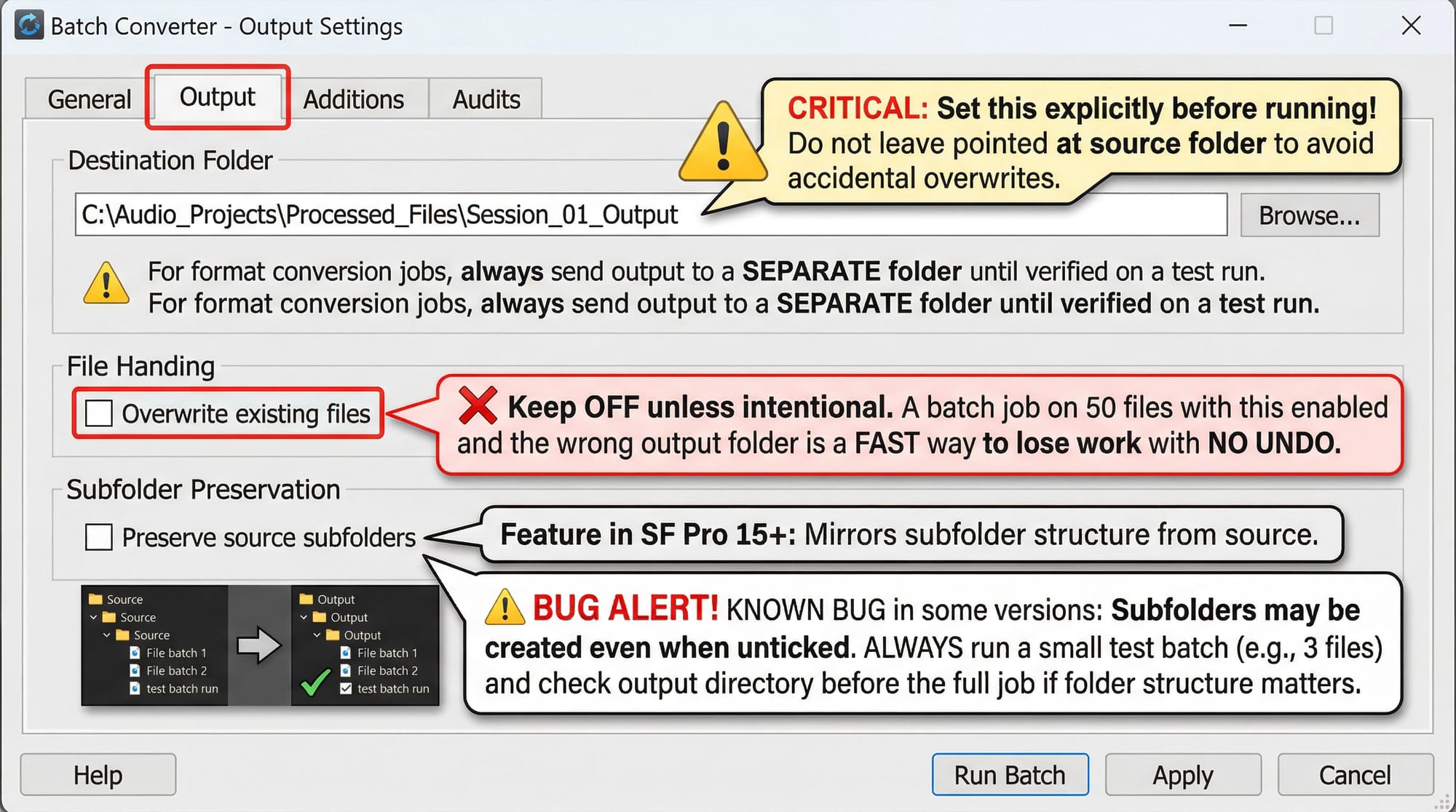
Destination folder — set this explicitly before running. If you leave it pointed at the source folder, Sound Forge may overwrite originals depending on your overwrite setting. For format conversion jobs especially, always send output to a separate folder until you've verified the results on a test run.
Overwrite existing files — the checkbox you want off unless you're intentionally replacing files. A batch job on 50 files with overwrite enabled and the wrong output folder is a fast way to lose work with no undo.
Preserve source subfolders — in SF Pro 15+, this checkbox mirrors subfolder structure from the source. There's a known bug where subfolders get created in the output even when the box is unticked. Check the output directory after a small test batch before running the full job if folder structure matters for your delivery. I caught this on a 60-file job once by running 3 test files first — subfolders appeared despite the box being off, which would have scrambled the delivery structure completely.
The Run Job Button — and Why It Disappears
Click Run Job to start processing. The Batch Converter shows per-file progress and logs any errors in the results panel. The official Batch Converter documentation on helpmax covers every option in the Process and Output tabs in detail.
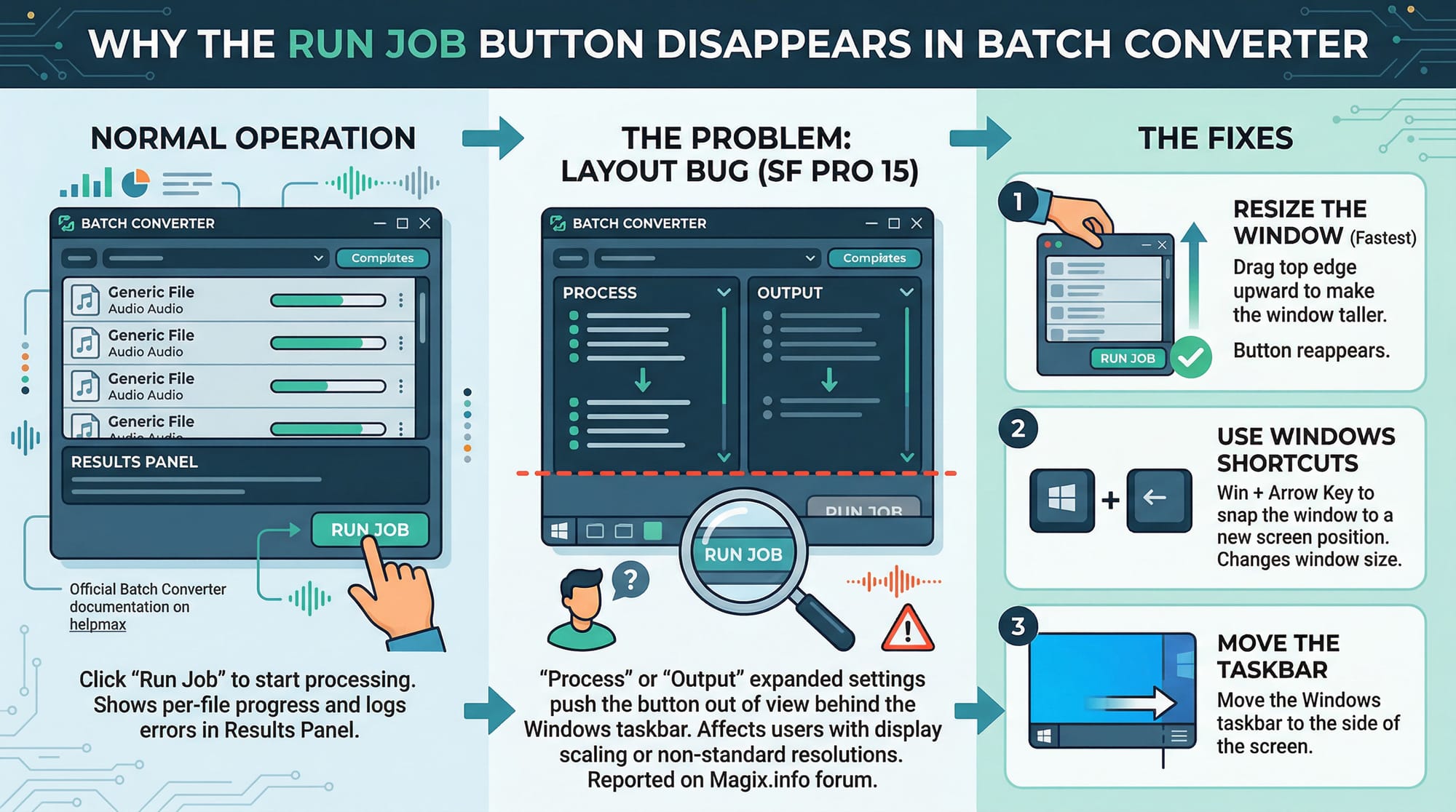
A layout bug in SF Pro 15 (and some configurations in later versions): the Run Job button hides behind the Windows taskbar when Process or Output sections are expanded. People have reported opening the Batch Converter, expanding settings, and not finding a button to start the job anywhere in the window — it's there, just pushed out of view.
Three fixes: drag the top edge of the Batch Converter window upward to make it taller, use Win + arrow key to snap the window to a new screen position, or move the Windows taskbar to the side of the screen. Resizing the window is the fastest. Once the window is tall enough to show the full layout, the button reappears at the bottom. This is documented in a magix.info forum thread and affects more people than you'd expect at non-standard screen resolutions or with display scaling enabled.
I spent several minutes hunting for that button the first time I used SF Pro 15's redesigned Batch Converter — the window opened at a size where the expanded Output section pushed Run Job exactly one pixel below the visible area. Dragging the window edge up about 80 pixels brought it back.
Saving and Reusing Batch Presets
Once you've configured a job you'll run again — a specific format conversion, a normalization target, a noise reduction chain — save it as a preset. Click Save Preset (or the equivalent save button in the Batch Converter toolbar depending on version). Give it a name that describes the output: "320kbps MP3 -14LUFS delivery" or "24bit FLAC archive NR chain".
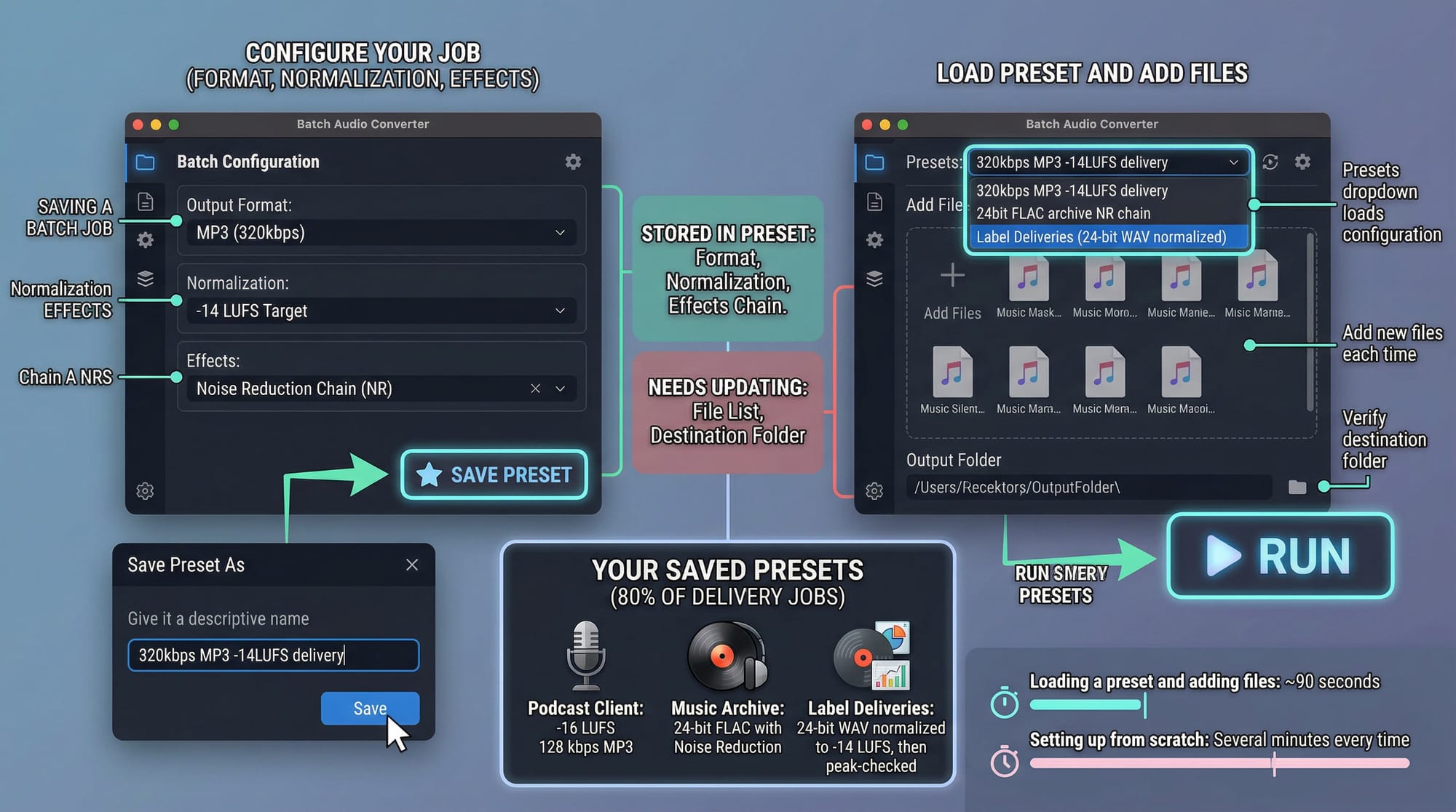
Saved presets load via the dropdown at the top of the Batch Converter window. Add your new files, load the preset, verify the output folder, run. The processing configuration — format, normalization, effects chain — is stored in the preset; only the file list and destination need updating each time.
This matters most for recurring work. I have three saved presets that cover 80% of my delivery jobs. The podcast client gets -16 LUFS 128 kbps MP3. The music archive gets 24-bit FLAC with noise reduction. The label deliveries get 24-bit WAV normalized to -14 LUFS, then peak-checked manually afterward. Loading a preset and adding files takes about 90 seconds. Setting up from scratch would take several minutes every time.
Processing Lossy Source Files
If your batch includes MP3, AAC, or other lossy source files, enable Options → Preferences → General → Always proxy compressed formats. This creates a temporary PCM mirror of each lossy file before processing, which prevents certain decoding artifacts that can appear when applying effects directly to compressed audio. It adds processing overhead but produces cleaner results, especially with noise reduction or normalization applied to MP3 sources.
For WAV-only batches, this setting doesn't matter. For mixed-format batches or when processing any lossy source, turn it on. I ran a batch of 34 MP3s through noise reduction without the proxy mode enabled once — about 9 of them came out with mid-frequency artifacts that weren't in the originals. Enabling proxy mode and rerunning fixed all 9. The overhead is worth it.
Windows Context Menu: Batch Without Opening Sound Forge
In SF Pro 15+, you can right-click a folder or file selection in Windows Explorer and access batch processing directly from the Windows context menu — without opening Sound Forge first. This uses saved Instant Action presets assigned to the context menu from within Sound Forge's Instant Action settings.
For recurring single-step operations — convert all files in a folder to MP3, normalize a folder to -14 LUFS — the context menu approach is faster than opening the Batch Converter every time. The configuration happens once inside Sound Forge; after that it's a right-click operation. I set one up for podcast deliveries: right-click any folder, select the preset, done — Sound Forge opens briefly in the background, processes, and closes. Saves about two minutes per delivery compared to opening the full UI every time. For multi-step chains involving effects and format conversion together, the full Batch Converter interface gives more control. A full breakdown of how this fits into a mastering workflow is in the mastering guide.
Frequently Asked Questions
Where is the Batch Converter in Sound Forge Pro?
Tools → Batch Converter. It opens as a separate window. In older Sony-era versions it was sometimes launched as a standalone application; in current MAGIX and Boris FX versions it opens integrated within Sound Forge Pro.
How do I batch convert files to MP3 in Sound Forge Pro?
Tools → Batch Converter → Add Files → Process tab → check File Format → click Format and select MP3 Audio → set 320 kbps CBR → Output tab → set destination folder → Run Job. If the Run Job button isn't visible, drag the window taller — it may be hidden behind the Windows taskbar at certain window sizes.
How do I batch normalize multiple files in Sound Forge Pro?
Tools → Batch Converter → Add Files → Process tab → check Normalize → select Peak or Loudness mode → set your target (-1.0 dBFS for peak, -14 LUFS for music streaming) → Output tab → set destination → Run Job. For LUFS normalization, SF Pro 15+ is required. Earlier versions only support peak normalization in batch.
Why won't VST plugins work in the Sound Forge Pro Batch Converter?
In SF Pro 11 and later, VST plugins must be part of a saved Plug-In Chain preset to run in batch. Go to FX Favorites → Apply Plug-In Chain, add your VST plugins, save the chain as a named preset. Then in Batch Converter → Process tab → Apply Plug-In Chain → select that saved preset. Native effects (Wave Hammer, coreFX) work directly without this step.
How do I batch apply effects to multiple files in Sound Forge Pro?
Process tab → Apply Plug-In Chain → select a saved chain preset. For native effects only, some can be added directly. For VST or complex chains, create and save a Plug-In Chain preset first via FX Favorites, then reference it in the batch job. The chain applies to every file in the file list in the same order and with the same settings.
Can I run multiple processes in one batch job in Sound Forge Pro?
Yes — in the Process tab you can check File Format, Normalize, and Apply Plug-In Chain simultaneously. All three apply to each file in sequence. In SF Pro 15+, you can also output to multiple formats in a single job. For example: apply noise reduction via a plugin chain, normalize to -14 LUFS, and export as both 320 kbps MP3 and 24-bit WAV in one run.
Why does the Batch Converter Run Job button not show in Sound Forge Pro?
A layout bug: when Process or Output sections are expanded, the Run Job button gets pushed below the visible window area at certain screen resolutions and with display scaling. Drag the top edge of the Batch Converter window upward to make it taller, or press Win + arrow key to reposition the window. The button is there — the window just isn't tall enough to show it.
Can I save batch settings for reuse in Sound Forge Pro?
Yes. After configuring a batch job, click Save Preset and name it. Saved presets appear in the dropdown at the top of the Batch Converter window. The file list and output destination aren't saved in the preset — only the processing settings. Load the preset, add new files, set the output folder, run.