How to Remove Background Noise in Sound Forge Pro
Sound Forge Pro ships with two noise reduction systems. Most people don't know that. They open the software, look in the wrong menu, don't find what they're looking for, and end up on a forum asking where noise reduction even is — I've read that thread half a dozen times in different years under different usernames. The tool is there. It's just not where you'd expect.
The two systems are the legacy NR-2.0 suite (a DirectX plugin that's been in Sound Forge since the Sony era) and the iZotope RX Elements DeNoiser (a VST that comes bundled with Sound Forge Pro). They work differently, handle different types of noise better, and the one you reach for depends on what you're dealing with. Both are in SF Pro. Neither is in Audio Studio without additional purchase.
Where to Find the Tools
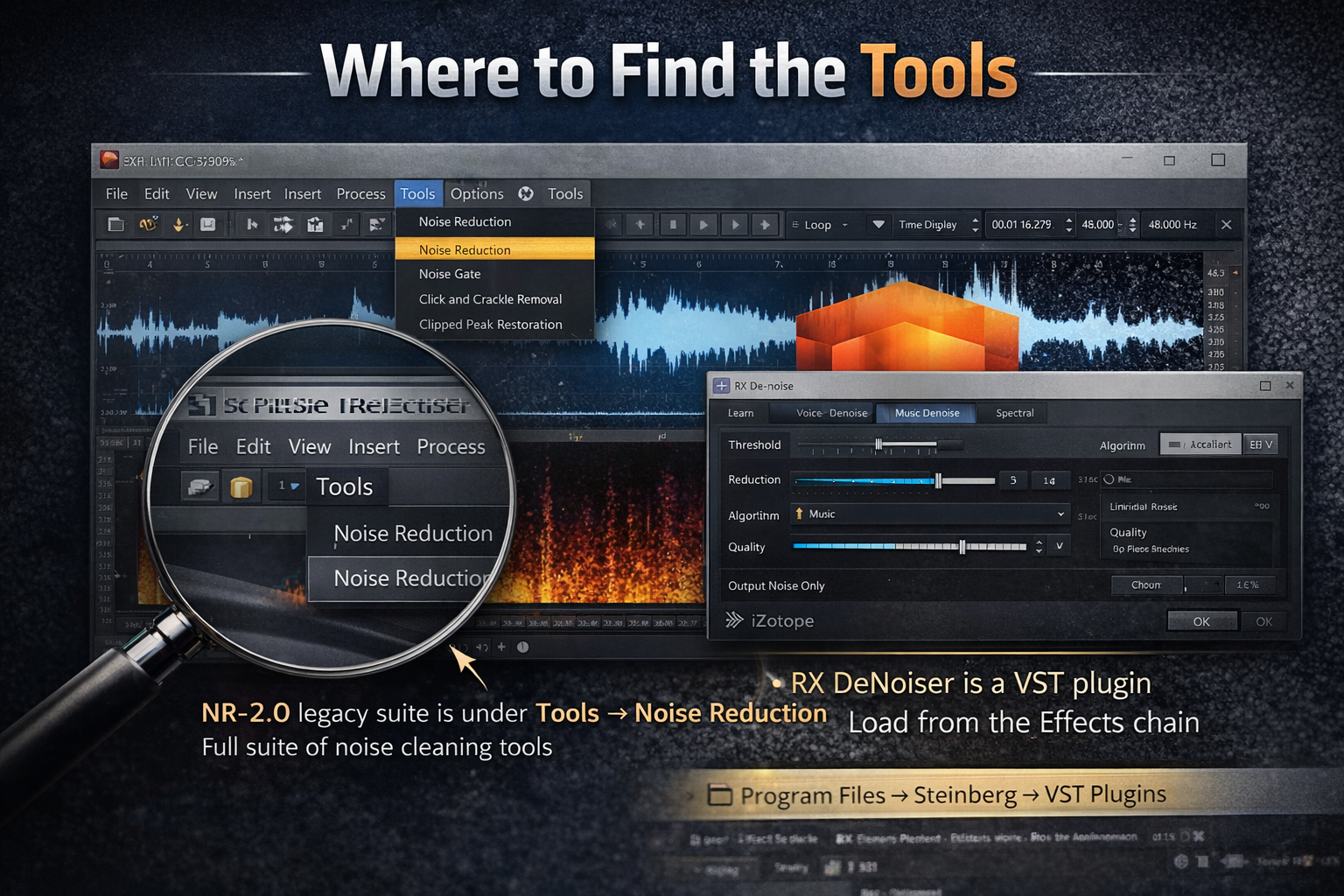
The NR-2.0 legacy suite lives under Tools → Noise Reduction. That menu gives you Noise Reduction, Noise Gate, Click and Crackle Removal, and Clipped Peak Restoration. If you've never opened it before, you might have walked past it a dozen times looking for something called "Audio Restoration" — that's a different submenu that exists in some versions. The Noise Reduction plugin is specifically under Tools.
The iZotope RX DeNoiser is a VST plugin. After installing Sound Forge Pro, the RX Elements .dll files land in Program Files → Steinberg → VST Plugins. Load it through the Effects chain — FX button in the toolbar, or through the Plug-In Chainer. If you're not seeing it listed, check that the Steinberg VST folder is in your VST search path under Options → Preferences → Audio.
On one vinyl restoration project in 2023 I spent 17 minutes convinced the RX DeNoiser wasn't installed before realizing the VST search path wasn't pointing at the right folder. The .dll was there the whole time.
The NR-2.0 Workflow: Noise Print First
NR-2.0 is the noise print method — the same approach Audacity uses, and what most people think of when they think "noise reduction." You give it a sample of pure background noise, it learns the frequency profile of that noise, and then it subtracts that profile from the rest of the file.
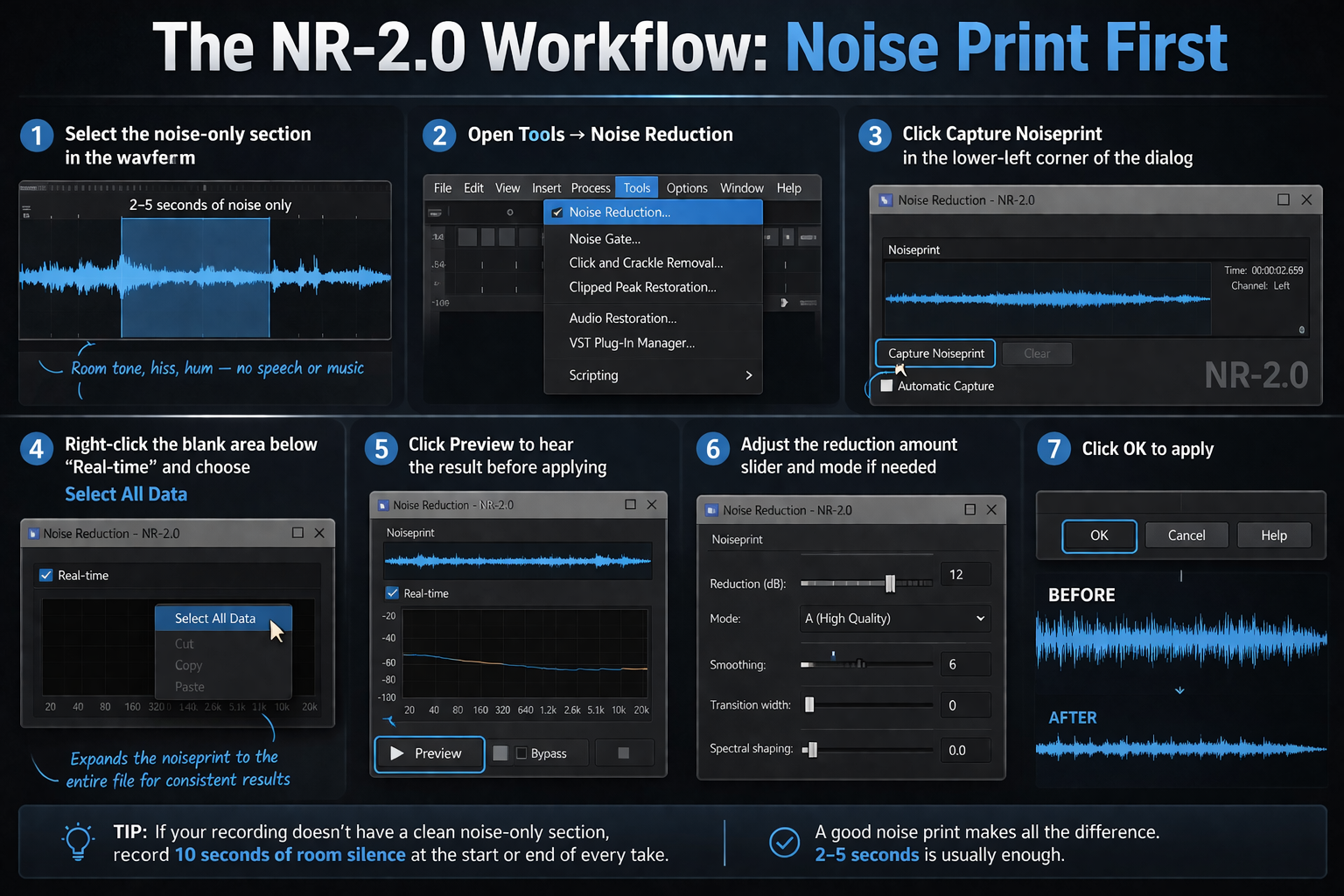
The quality of the noise print makes or breaks the result. You need a section of audio that contains only the noise you want to remove — room tone, HVAC hum, tape hiss — with no speech, music, or other content mixed in. Two to five seconds is enough. If your recording doesn't have a clean noise-only section, always record one at the start or end of every take before you start speaking or playing — the recording guide covers why this matters at the capture stage. Ten seconds of room silence at the top of a session takes no time and has saved more than a few recordings I'd otherwise have had to re-do.
- Select the noise-only section in the waveform
- Open Tools → Noise Reduction
- Click Capture Noiseprint in the lower-left corner of the dialog
- Right-click the blank area below the "Real-time" checkbox and choose Select All Data to extend the selection to the entire file
- Click Preview to hear the result before applying
- Adjust the reduction amount slider and mode if needed
- Click OK to apply
NR-2.0 Settings: Reduction Amount and Mode
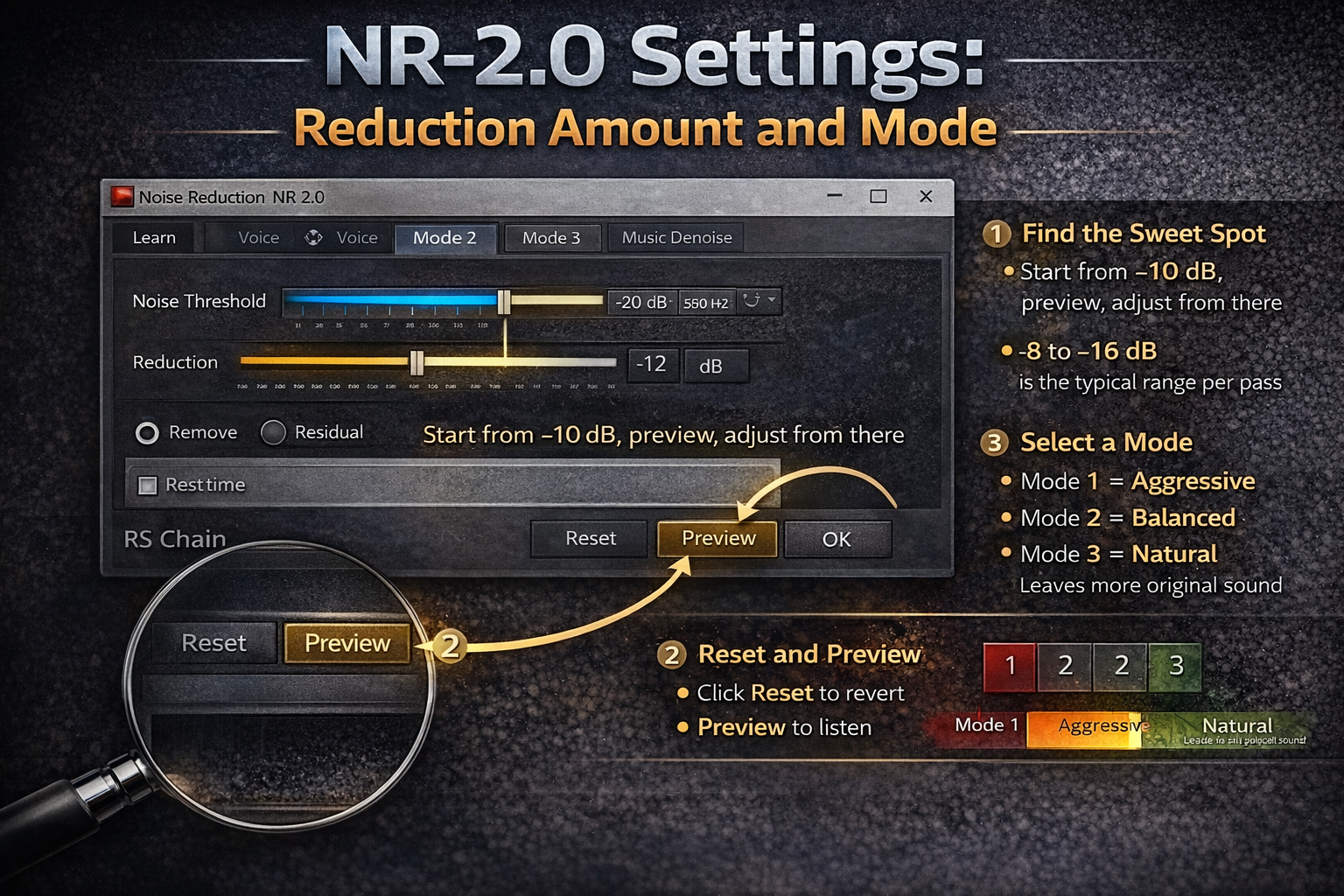
The reduction amount slider is the one control that matters most. The maximum number in the plugin is not the target — it's the ceiling. Pull it to 100% and you will hear flanging, metallic smearing, or an underwater quality on voices. Those aren't bugs. They're what happens when noise reduction gets aggressive enough to start taking out audio that isn't noise.
Start at -10 to -12 dB. Preview. If you still hear too much noise, go to -14 dB. The useful range for most recordings is -8 to -16 dB per pass. Beyond that, artifacts accumulate faster than noise disappears. For heavy noise situations — field recordings, cassette transfers, old vinyl — run two or three lighter passes rather than one aggressive one. Each pass uses a fresh render, so artifacts from the first pass don't compound the way they would if you kept pushing the same slider further.
The Mode setting (1, 2, or 3) affects how aggressively the algorithm attacks noise between signal transients. Mode 1 is most aggressive. Mode 3 removes less noise overall but preserves more of the natural feel of the recording — fewer artifacts on voice recordings where the noise floor isn't catastrophic. For HVAC and room hum on spoken word, Mode 3 is usually the right call.
I processed a 43-minute interview recording with HVAC running throughout — Mode 1 at -14 dB left an audible metallic haze on every breath. Mode 3 at the same setting cleaned the noise and left the room acoustics intact. The client never knew it had been processed.
iZotope RX DeNoiser: The Learn Approach
The RX DeNoiser doesn't use a noise print the same way. Instead of selecting a section first, you click Learn and play the file starting from the noisy section. RX listens, identifies the noise profile automatically, and applies reduction continuously. It's more adaptive than NR-2.0 — better at noise that changes slightly over time, like a room with inconsistent AC cycling on and off.
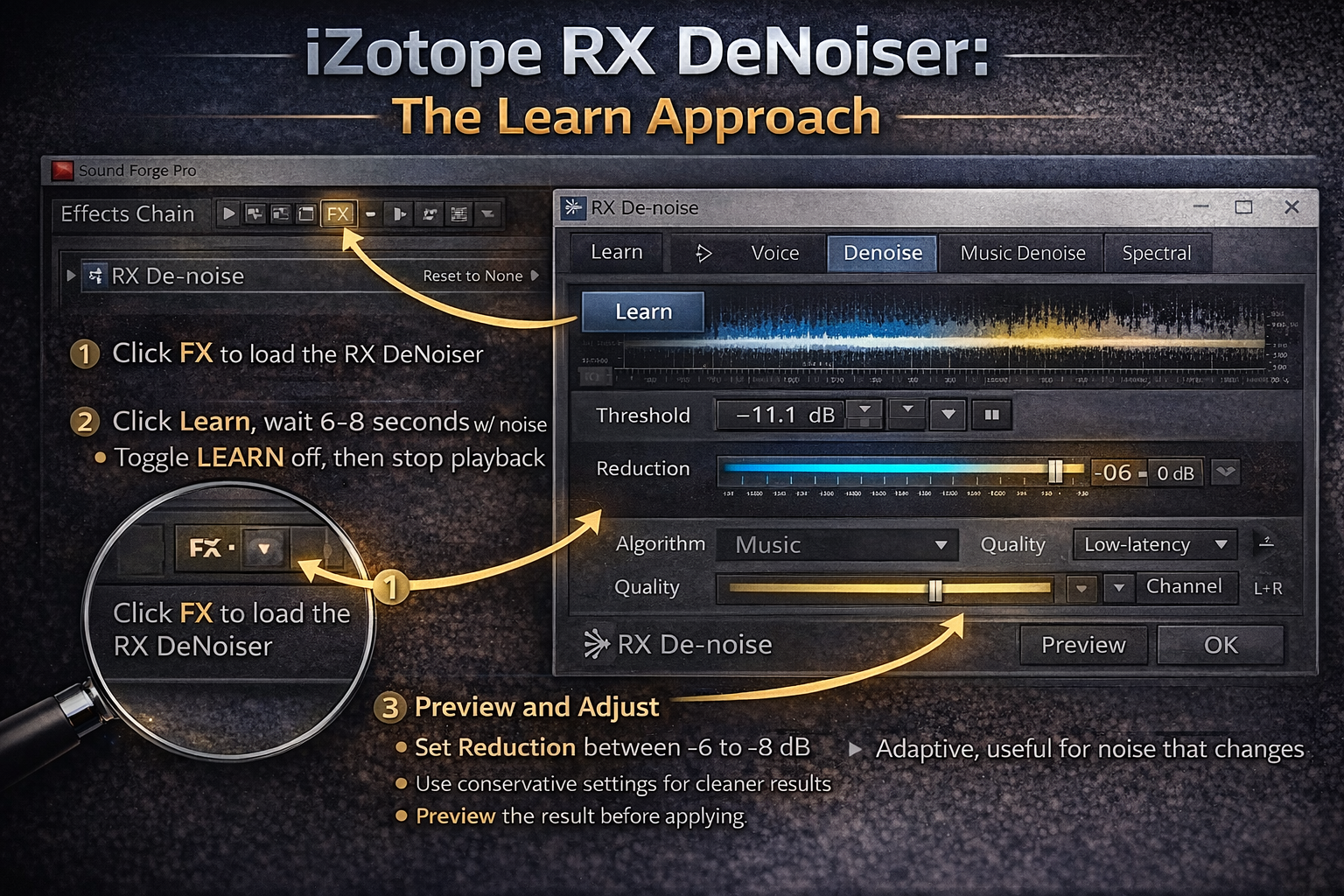
Load the RX DeNoiser through the Effects chain or plug-in chainer. Hit Learn, play a few seconds of noise-only audio (or let it run from the start if the first section is clean noise), then stop. Toggle Learn off. Preview the result with your reduction amount set conservatively — start around 6–8 dB here too, for the same reason. The RX algorithm sounds cleaner at moderate settings than NR-2.0 for most broadband noise, but it's not immune to artifacts at high reduction amounts. iZotope's own RX Elements tips guide covers the Learn workflow in detail.
One difference worth knowing: with RX Elements bundled with Sound Forge Pro, you're getting a subset of iZotope's full RX suite. The DeNoiser in Elements handles standard broadband noise well. For dialogue isolation, spectral repair, or heavy-duty restoration work, you'd need RX Standard or Advanced as a separate purchase — Elements won't get you there on a badly damaged recording. The Sound Forge Pro review covers the full restoration toolkit in context.
Which Tool for Which Noise
Room tone / HVAC / fan noise — NR-2.0 or RX DeNoiser, either works. NR-2.0 is more predictable when the noise is steady and consistent. RX is better when it varies. If NR-2.0 sounds too processed even at low reduction amounts, try pulling down the Noise Bias slider — it controls how aggressively the algorithm engages between signal transients, and lowering it reduces flanging without raising the noise floor much.
60 Hz AC hum and harmonics — NR-2.0's noise reduction can handle this, but a notch filter at 60 Hz (and its harmonics at 120, 180, 240 Hz) before running noise reduction gives cleaner results. Take two or three passes of notch filtering first, then run the broadband NR.
Clicks and crackles — Tools → Noise Reduction → Click and Crackle Removal. Separate from broadband noise reduction entirely. For vinyl transfers I always run click removal first, then broadband NR, not the other way around.
Hiss on tape transfers — NR-2.0 at -10 to -12 dB, Mode 3. Tape hiss has a specific frequency profile that the noise print captures well. Don't try to eliminate it completely — some residual hiss sounds more natural than the metallic silence NR leaves behind when pushed too hard.
The Artifact Problem: When to Stop
Underwater / flanging effect — reduction amount is too high. The algorithm is subtracting frequency content that's part of the signal, not just the noise. Drop the reduction by 3–4 dB and preview again. If you need more reduction than the plugin can cleanly deliver in one pass, apply it in two lighter passes.
Pumping or breathing — the noise print wasn't clean enough, or the noise changes across the file. The algorithm is treating some of the signal as noise because the profile it learned doesn't match what it's encountering. Re-capture the noise print from a different section, or try RX DeNoiser's Learn mode instead, which adapts dynamically.
The target isn't a silent noise floor — it's a noise floor that doesn't distract. A recording that sounds like it was made in a quiet room is finished. A recording that sounds like it was processed is not. There's a point where further reduction makes things worse, and finding it before you cross it is the skill.
Frequently Asked Questions
Where is the noise reduction tool in Sound Forge Pro?
Tools → Noise Reduction. Not under Effects, not under Audio Restoration — specifically under the Tools menu. The iZotope RX DeNoiser is a separate VST plugin loaded through the Effects chain or Plug-In Chainer.
How do I capture a noise print in Sound Forge Pro?
Select a section of audio that contains only the noise — no speech, no music — then open Tools → Noise Reduction and click Capture Noiseprint. Two to five seconds of clean room noise is enough. The quality of this selection directly determines how well the noise reduction works.
What's the difference between NR-2.0 and iZotope RX in Sound Forge Pro?
NR-2.0 uses a fixed noise print you capture manually — better for steady, consistent noise like HVAC or tape hiss where the frequency profile doesn't change. RX DeNoiser uses adaptive learning and handles variable noise better. Both are included with Sound Forge Pro. For serious restoration work, RX Standard or Advanced (separate purchase) goes considerably deeper.
Why does noise reduction make my audio sound underwater?
Reduction amount is too high. The algorithm is subtracting audio content alongside the noise. Drop the reduction by 3–4 dB, or run two lighter passes instead of one heavy one. Multiple passes at -10 dB produce less damage than a single pass at -25 dB.
Should I remove noise before or after normalizing?
Run noise reduction before normalizing. Normalizing raises everything, including the noise floor — the NR algorithm gets a cleaner noise print and makes better decisions when working on the file before levels have been boosted. After NR, normalize to your target, then export.
Can Sound Forge Pro remove background music from a voice recording?
No — not with its included tools. Background noise removal targets steady broadband noise with a consistent frequency profile. Music is a signal, not noise, and the NR algorithms can't distinguish it from the voice. For stem separation or music removal, you'd need a different tool — SpectraLayers Pro (available separately) handles spectral editing at that level.
What's the best noise reduction setting in Sound Forge Pro?
Start at -10 to -12 dB reduction with Mode 3 in NR-2.0. Preview before applying. If you still hear too much noise, try a second pass rather than pushing the first pass higher. Most recordings sound best with the noise reduced to inaudible, not to zero — the treatment artifacts at the extremes are more distracting than moderate room tone.
The noise reduction plugin isn't showing up in Sound Forge Pro — how do I fix it?
For NR-2.0: it installs as a separate component. If it's missing, run the Sound Forge Pro installer again and make sure the Noise Reduction Pack option is checked. For the iZotope RX DeNoiser: confirm the RX Elements .dll files are in Program Files → Steinberg → VST Plugins, then check your VST search path under Options → Preferences → Audio. If the Steinberg folder isn't listed there, add it and restart Sound Forge — the plugin will appear in the Effects chain.