How to Normalize Audio in Sound Forge Pro
Sound Forge Pro has three normalization modes and most people use the wrong one for what they're actually trying to do. Peak normalization raises the highest transient to a ceiling. RMS normalization targets average loudness and can compress your dynamics if you push it too far. LUFS normalization — added in SF Pro 15 — targets the integrated loudness standard that streaming platforms and broadcast use. They're different tools, not three names for the same thing.
I've normalized a few hundred tracks in Sound Forge across mastering sessions, podcast deliverables, and vinyl transfers. The number of times I've seen someone normalize to 0 dB RMS and wonder why the file sounds crushed is not small.
Where Normalize Lives: Process Menu
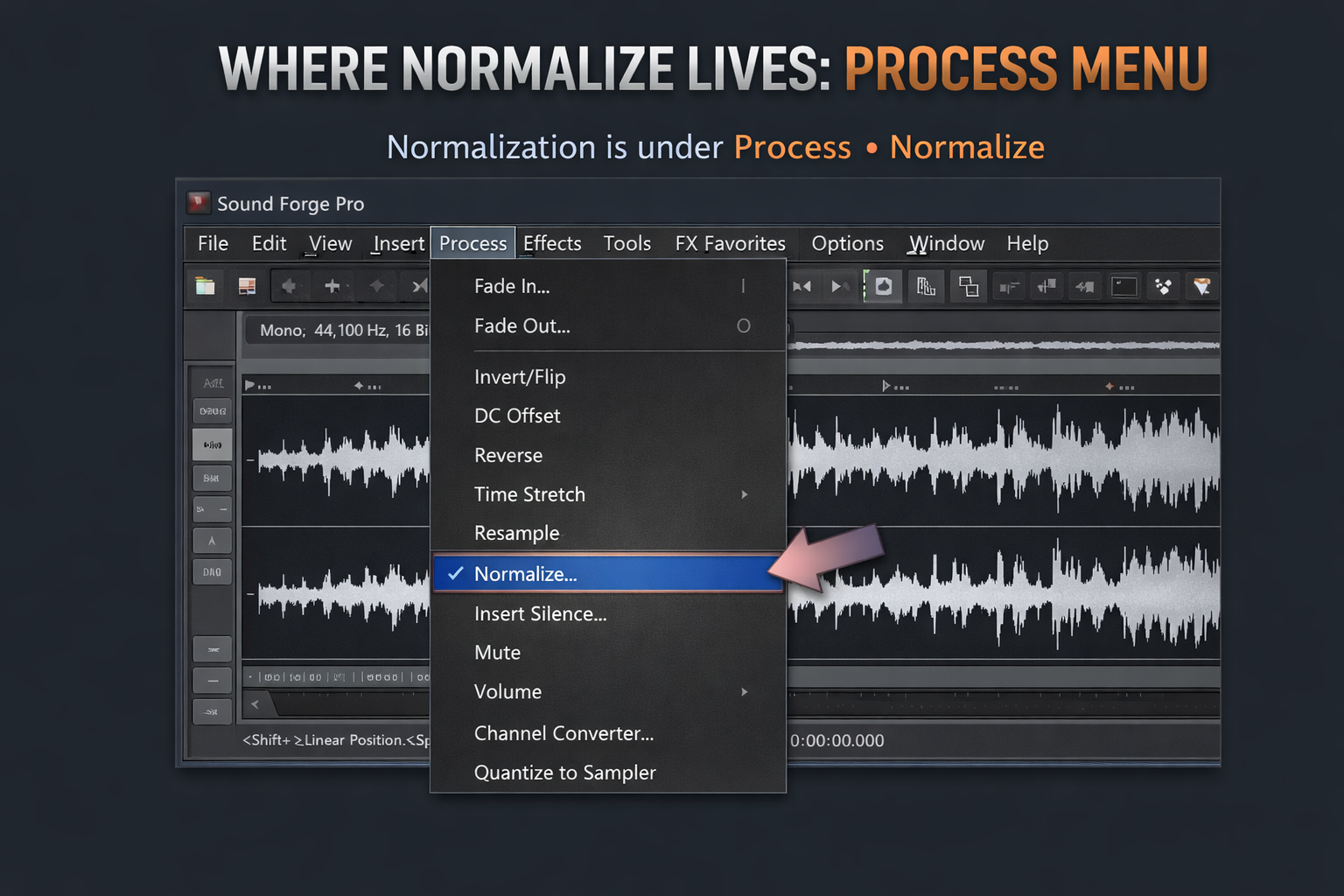
Normalization is under Process → Normalize. Not under Effects, not under Tools — Process menu, same place as Fade In, Fade Out, and Volume. If you've been looking for it somewhere else, that's where it is.
The dialog opens with three radio buttons: Peak Level, Average RMS Level, and Loudness (SF Pro 15 and later). Each changes the mode and the available controls. At the bottom left is the Scan Levels button — important for workflow, covered below.
A separate but related tool: Tools → Statistics. This scans the entire file and returns integrated LUFS, true peak, RMS, and more — without playing the file in real time. It's faster than playing back a 40-minute recording to check levels, and for LUFS work it's the primary verification step. I use it before and after every normalization pass on anything that has a loudness spec attached.
Peak Normalization: The Safe Default
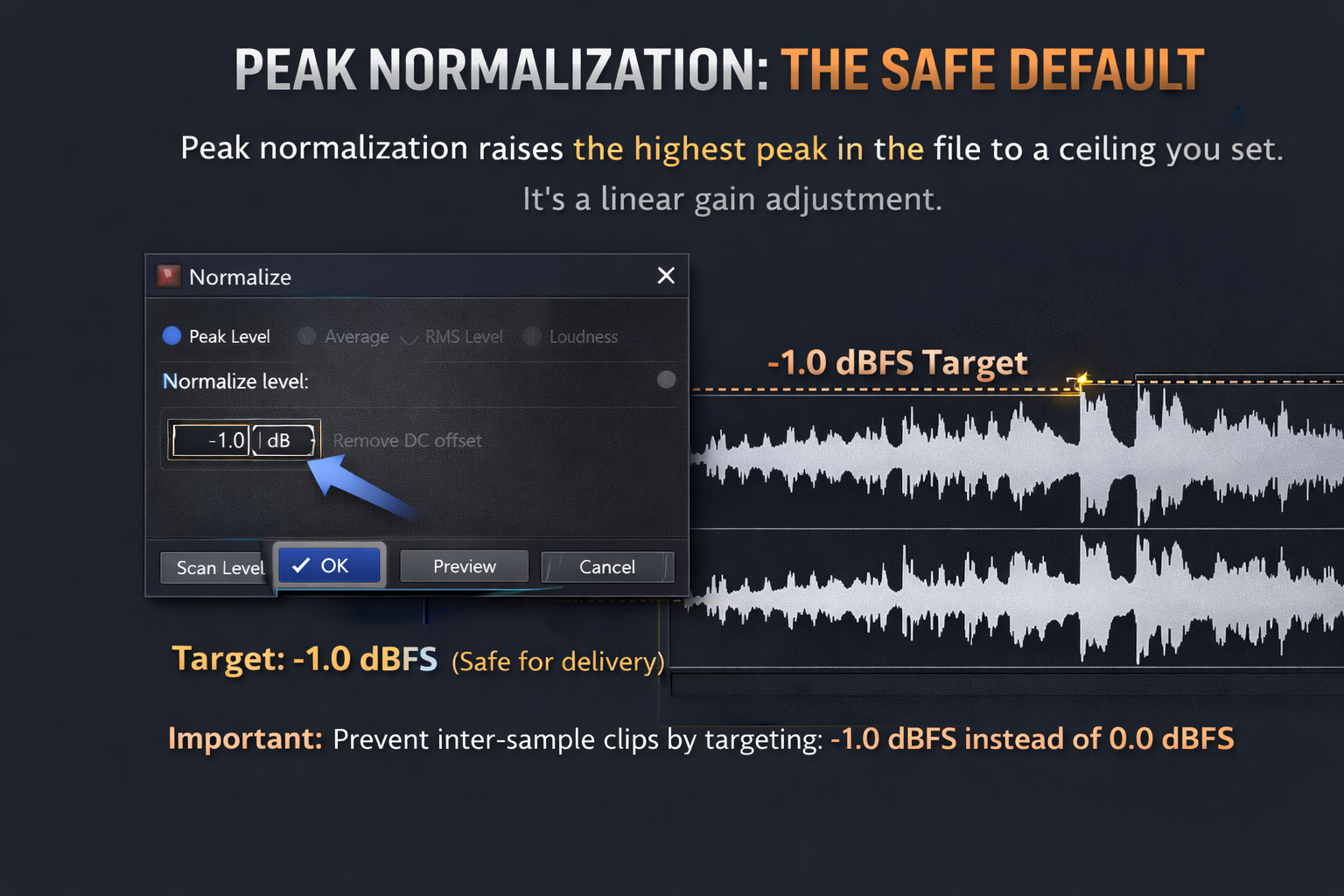
Peak normalization raises the highest peak in the file to a ceiling you set, then raises everything else by the same amount. Dynamics stay intact — the relationship between quiet and loud passages doesn't change. It's a linear gain adjustment.
Select Peak Level, set the target, click Scan Levels, preview, click OK. For most delivery purposes -1.0 dBFS is the standard target, not 0 dBFS. The reason is inter-sample peaks — when a 0 dBFS digital file gets decoded or transcoded, the D/A converter can produce analog peaks slightly above 0, causing audible clipping on some playback systems. -1.0 dBFS gives one dB of headroom against this. For MP3 or AAC exports specifically, -1.0 to -0.5 dBFS is standard — lossy encoding can push peaks above 0 even from a clean source. The MP3 export guide covers why this matters at the encoding stage.
On a mastering session for a 7-track EP last year, I delivered everything normalized to -0.3 dBFS peak. The label's encoding house came back asking why one track was hitting their limiter on the MP3 encode — turned out I'd accidentally set the last track to 0.0 dBFS. 0.3 dB on paper, audible artifact in the encoded file. Now I check the target value before every export, not after.
RMS Normalization: Handle with Care
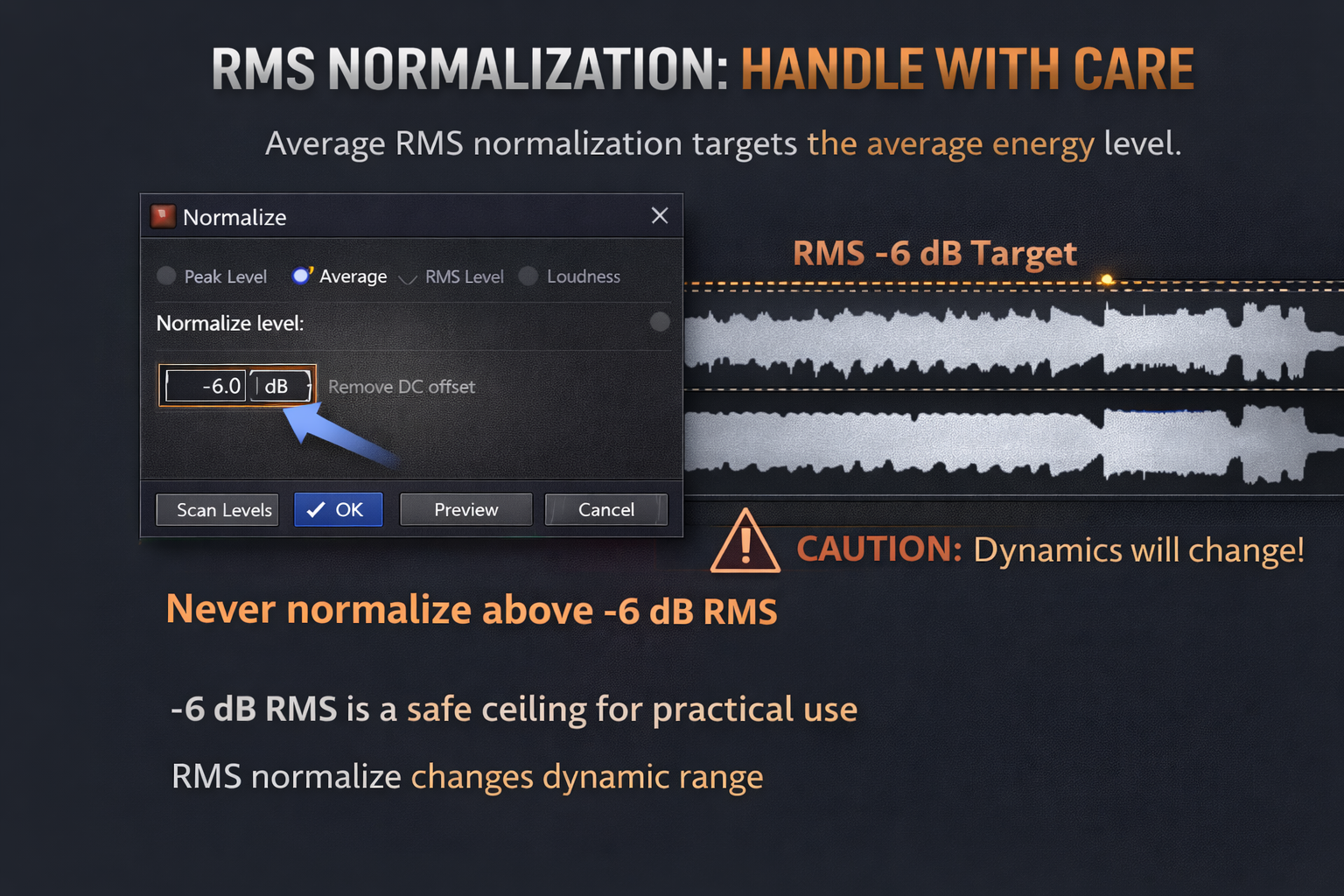
Average RMS normalization targets the average energy level of the file rather than its peaks. The intended use case is matching the perceived loudness of different recordings when peaks don't tell the full story — a classical recording with large dynamic range will have a much lower RMS than a compressed pop track even if both peak at -1 dBFS.
The official documentation says it directly: never normalize RMS above -6 dB. Setting RMS to 0 dB is equivalent to the loudness of a 0 dB square wave — everything gets crushed. The dynamic range compresses because the gain applied to reach the RMS target is non-uniform across the file. Loud passages get raised less than quiet ones. It's not the same process as peak normalization and it introduces dynamics changes you didn't ask for.
For practical use: if you're matching levels across a batch of voice recordings where consistent perceived loudness matters more than absolute peaks, RMS at -18 to -23 dB is a reasonable range. Click Scan Levels first so you can see the current RMS value, then set your target relative to it. Preview before applying — the difference between RMS at -18 dB and -12 dB on a voice recording is audible and not subtle.
I tried RMS normalize once on a 12-track compilation project to match perceived levels across recordings from different studios. Set it to -14 dB because that's where most of the tracks sat. Three tracks from a session with big dynamic range came out sounding like someone sat on a compressor. Went back to peak normalize plus manual volume adjustments. RMS normalize is a specific tool for a specific scenario — it's not a loudness matcher.
LUFS Normalization: SF Pro 15 and Later
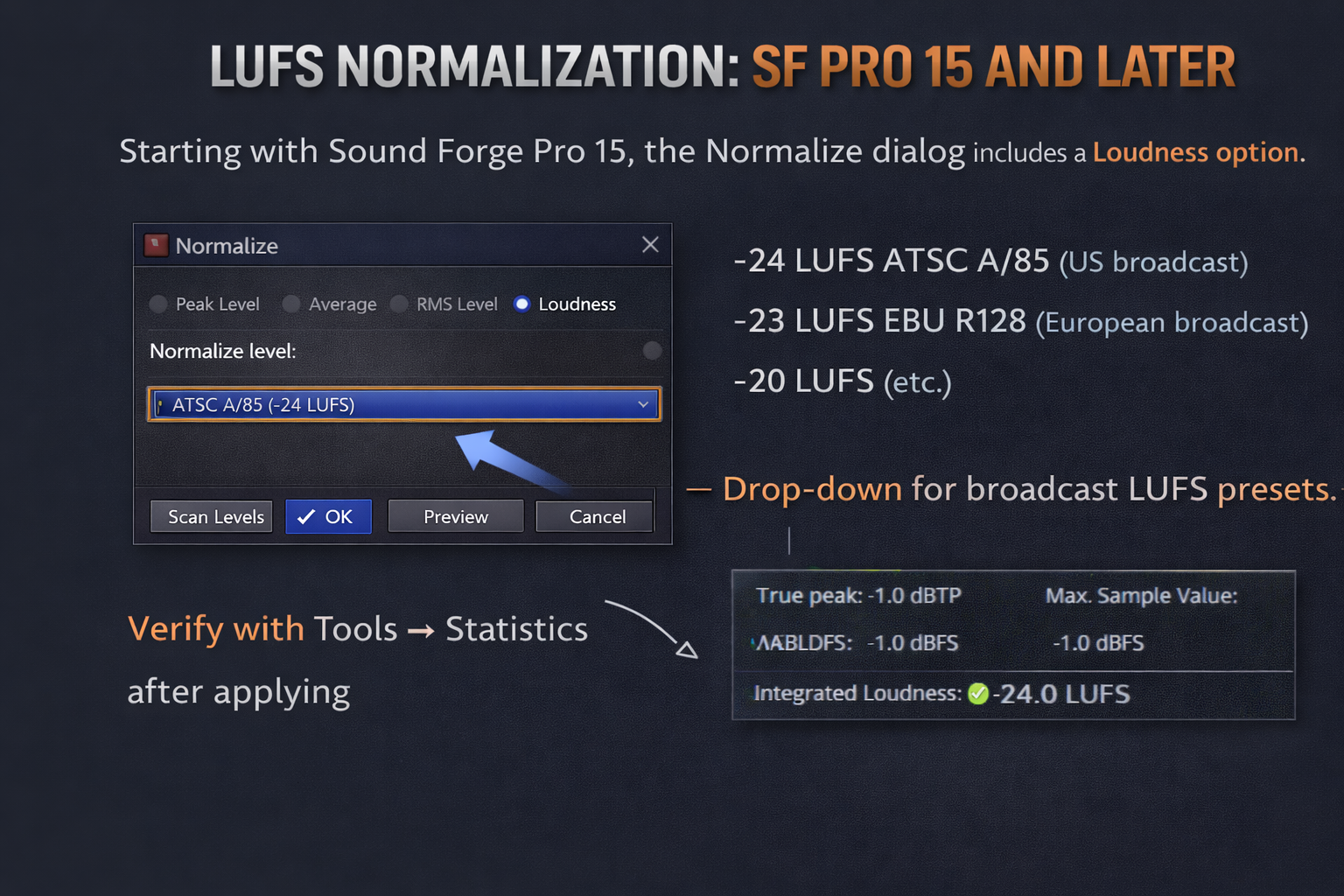
Starting with Sound Forge Pro 15, the Normalize dialog includes a Loudness option. This applies integrated LUFS normalization to presets: ATSC A/85 (-24 LUFS, US broadcast standard), EBU R128 (-23 LUFS, European broadcast), and a few others in the -20 to -25 LUFS range. There is no field for a custom streaming target like -14 LUFS (Spotify/Apple Music) or -16 LUFS (YouTube) — those require the trial-and-error workflow described below.
For broadcast delivery with a known spec, the LUFS presets are the fastest path. Select Loudness, choose the preset, Scan Levels, preview, apply. Verify with Tools → Statistics afterward — the Statistics readout shows integrated LUFS alongside true peak and RMS, which is what broadcast QC checks.
A client last year submitted a VO package to a broadcaster and got it rejected because integrated LUFS was -21.4 instead of the required -23.0. She'd normalized to the EBU preset but hadn't run Statistics to verify — the file had a brief section of unusually loud room noise that pulled the integrated loudness higher than the preset expected. Two minutes with Statistics would have caught it before submission. The Sound Forge product page lists the full loudness spec support for current versions.
The limitation is real: Sound Forge Pro does not auto-normalize to arbitrary LUFS targets the way some dedicated loudness tools do. If a client asks for -14 LUFS and you set the LUFS normalize to a preset that doesn't include -14, you're doing this manually. The Sound Forge Pro review covers how this compares to other editors on loudness workflow.
Hitting a Custom LUFS Target: The Statistics Workflow
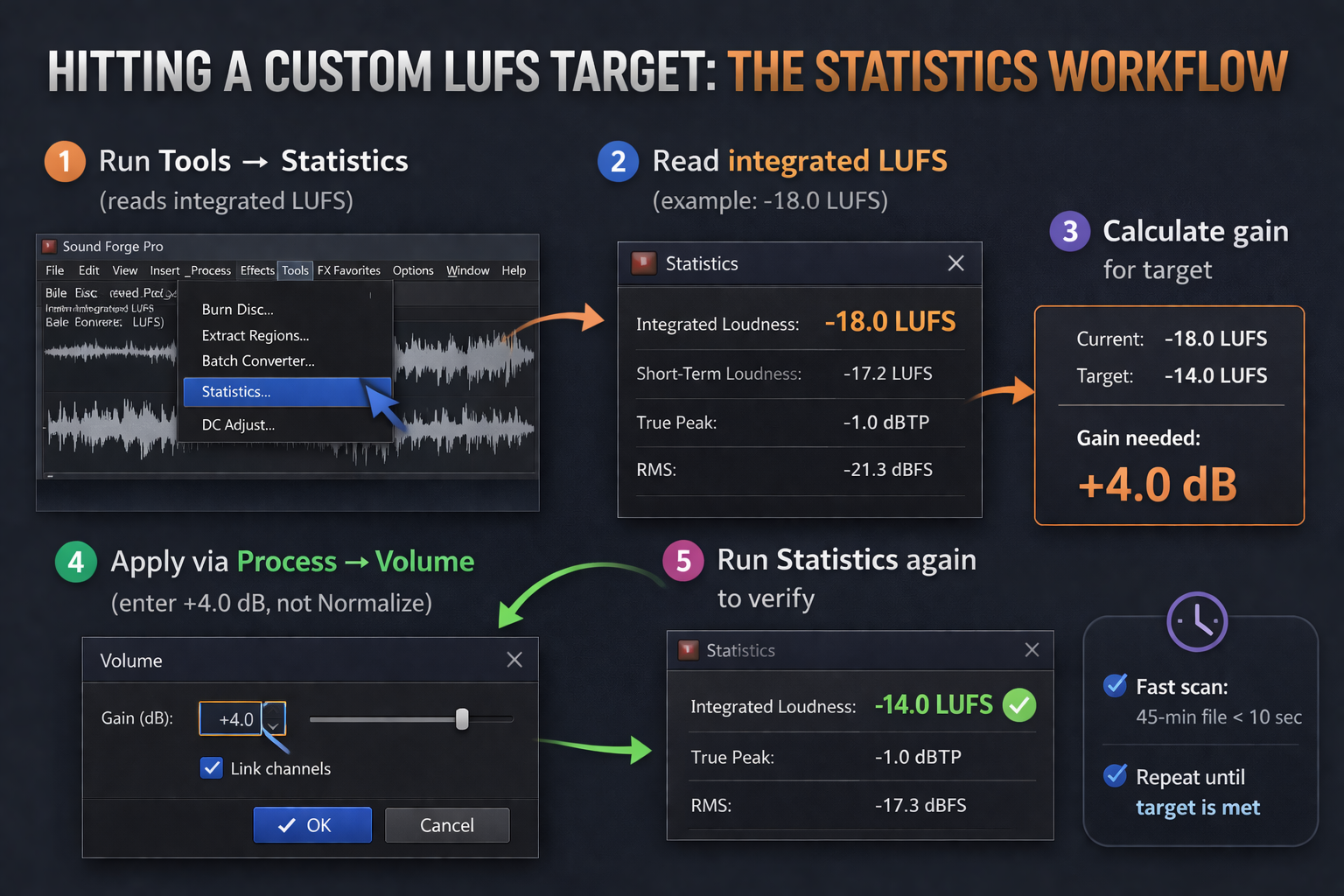
Run Tools → Statistics on the file. Read the integrated LUFS value in the readout. Calculate the difference between where you are and where you need to be — if the file reads -18 LUFS integrated and the target is -14 LUFS, you need +4 dB of gain. Apply that gain via Process → Volume (not Normalize), entering +4 dB. Run Statistics again to confirm. If you overshoot slightly, adjust and repeat. Takes three minutes once you've done it a few times, and it's more precise than trying to hit a custom target by guessing at RMS normalize settings.
One thing the Statistics process won't do: it doesn't adjust the file. It only reads. You have to apply the gain separately and re-verify. But the readout is fast — a 45-minute podcast file scans in under 10 seconds rather than real-time playback, which matters when you're doing this across a run of files.
The Scan Levels Button: Save a Rescan
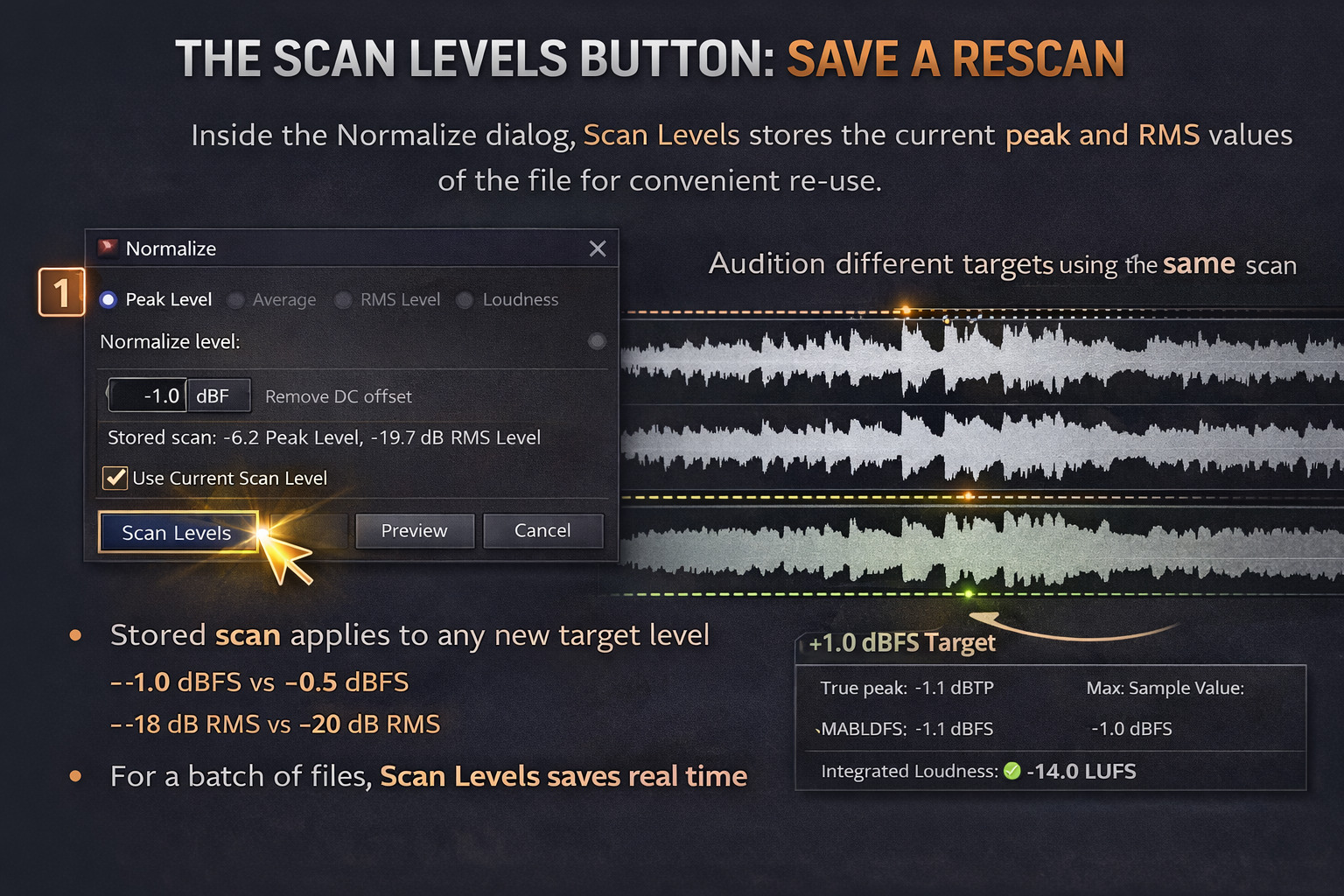
Inside the Normalize dialog, Scan Levels stores the current peak and RMS values of the file. Once you've scanned, you can change the target value and preview at the new level without rescanning. The stored scan applies to any new target you set via the Use Current Scan Level checkbox.
On files longer than a few minutes this saves real time. Scan once, audition different target levels — -1 dBFS vs -0.5 dBFS, or -18 dB RMS vs -20 dB RMS — without waiting for a full rescan each time. When you've found the right target, click OK.
On a batch of 31 podcast episodes I normalized last autumn, Scan Levels cut the total time by roughly a third — one scan per file, four or five previews per file without re-scanning. It adds up when the queue is long.
Order of Operations
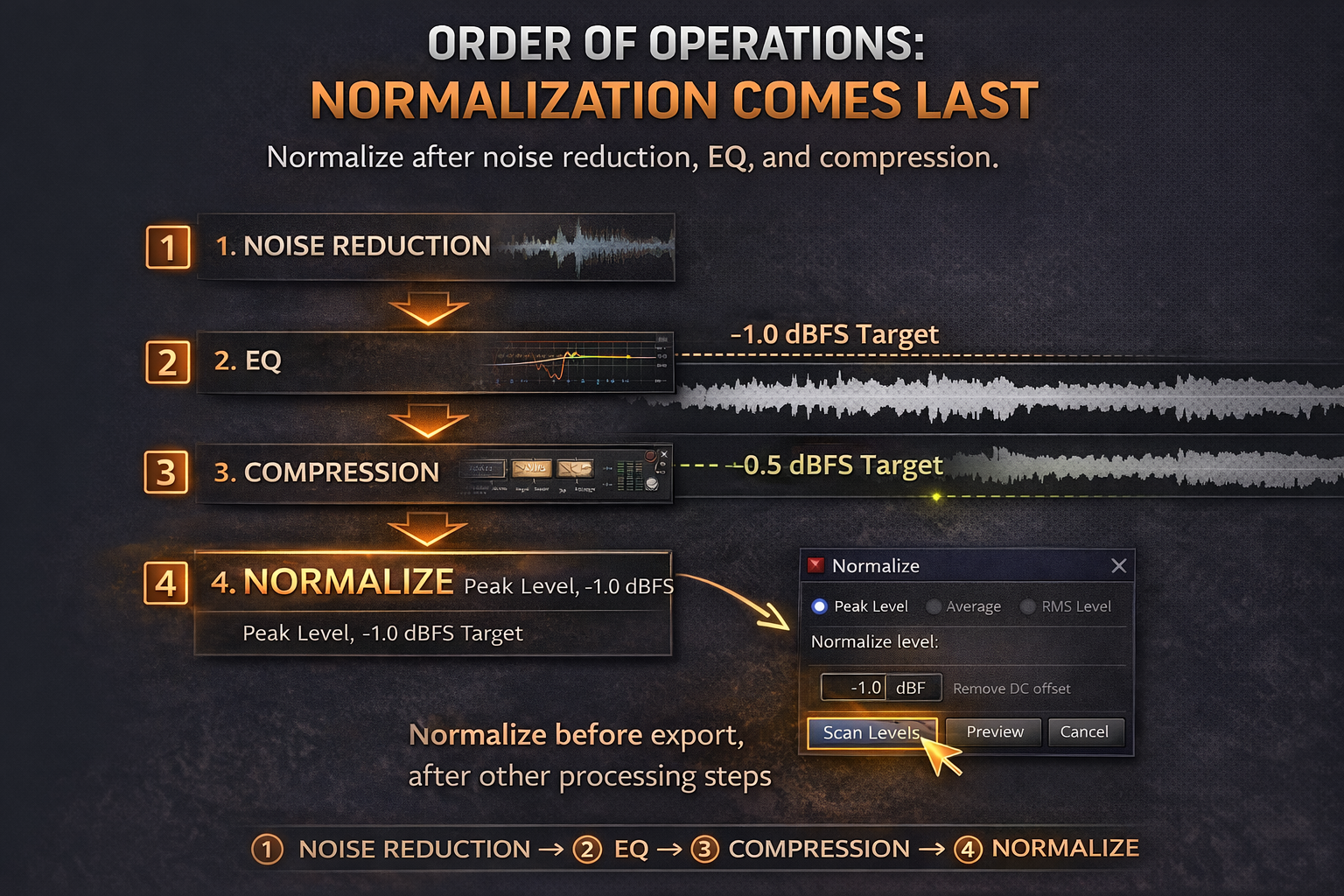
Normalization is the last processing step before export. Run it after noise reduction, EQ, compression, and any other processing. Normalizing first and then running noise reduction or effects can introduce peaks above your normalized ceiling — the effects can raise levels beyond what you set. More importantly, noise reduction gets a better noise print on an un-boosted file, and EQ and compression make better decisions when the signal hasn't been artificially raised yet.
The order I use on every mastered track: noise reduction → EQ → compression → normalize peak to target → verify with Statistics → export. If the Statistics readout shows true peak above -1.0 dBFS after normalization, something in the processing chain raised levels post-normalize and I go back and fix it before the file leaves Sound Forge.
For normalizing a batch of files to the same peak target, use Tools → Batch Converter. Add the files, set the output format and path, and configure normalization in the processing options. It applies the same peak target uniformly across the whole batch — faster than opening each file individually. Batch Converter doesn't give you per-file Statistics verification, so check a few files manually after the run if the batch contains material with widely varying dynamics.
Frequently Asked Questions
How do I normalize audio in Sound Forge Pro?
Process → Normalize. Choose the mode (Peak Level, Average RMS, or Loudness for LUFS). Click Scan Levels to measure the current level. Set your target — -1.0 dBFS for peak, -23 LUFS for EBU broadcast, -18 to -23 dB for RMS on voice. Preview, then click OK to apply.
What level should I normalize to in Sound Forge Pro?
For music delivery: peak normalize to -1.0 dBFS. For MP3 or AAC export: -1.0 to -0.5 dBFS to account for inter-sample peaks from lossy encoding. For podcast or voice-over: -18 to -23 dB RMS, or -16 LUFS integrated for most streaming and online delivery. For broadcast: -24 LUFS (ATSC, US) or -23 LUFS (EBU R128, Europe).
What's the difference between peak, RMS, and LUFS normalization?
Peak normalization raises the highest transient to a ceiling without changing dynamics. RMS normalization targets average energy — can compress dynamics if set too high, never go above -6 dB RMS. LUFS normalization targets integrated loudness as measured by the ITU-R BS.1770 standard, which is what streaming platforms and broadcast QC systems use. They measure different things and are not interchangeable.
How do I check LUFS in Sound Forge Pro?
Tools → Statistics. The Statistics readout shows integrated LUFS, true peak, RMS, and loudness range without playing back the file in real time. Run it before normalizing to know where you're starting, and after to confirm you hit the target.
Why does my normalized audio peak above 0 dB after encoding?
Inter-sample peaks. Lossy encoding (MP3, AAC) can produce analog output slightly above the digital 0 dBFS ceiling even when the source peaks at exactly 0 dBFS. Normalize to -1.0 dBFS or lower before lossy export. If you're still seeing this, check whether any processing applied after normalization is adding gain.
Can Sound Forge Pro normalize to -14 LUFS for Spotify?
Not directly via a preset — the LUFS normalize option covers broadcast standards (-23 to -20 LUFS) but has no -14 LUFS streaming preset. The workaround: run Tools → Statistics to get the current integrated LUFS, calculate the difference between that value and -14 LUFS, apply that as a gain adjustment via Process → Volume, then verify with Statistics again.
Should I normalize before or after noise reduction?
After. Run noise reduction first, then normalize. Noise reduction gets a cleaner noise print on an un-boosted file, and normalizing first means any subsequent processing can push peaks above your ceiling. More detail on the right order in the noise reduction guide.