How to Export MP3 from Sound Forge Pro
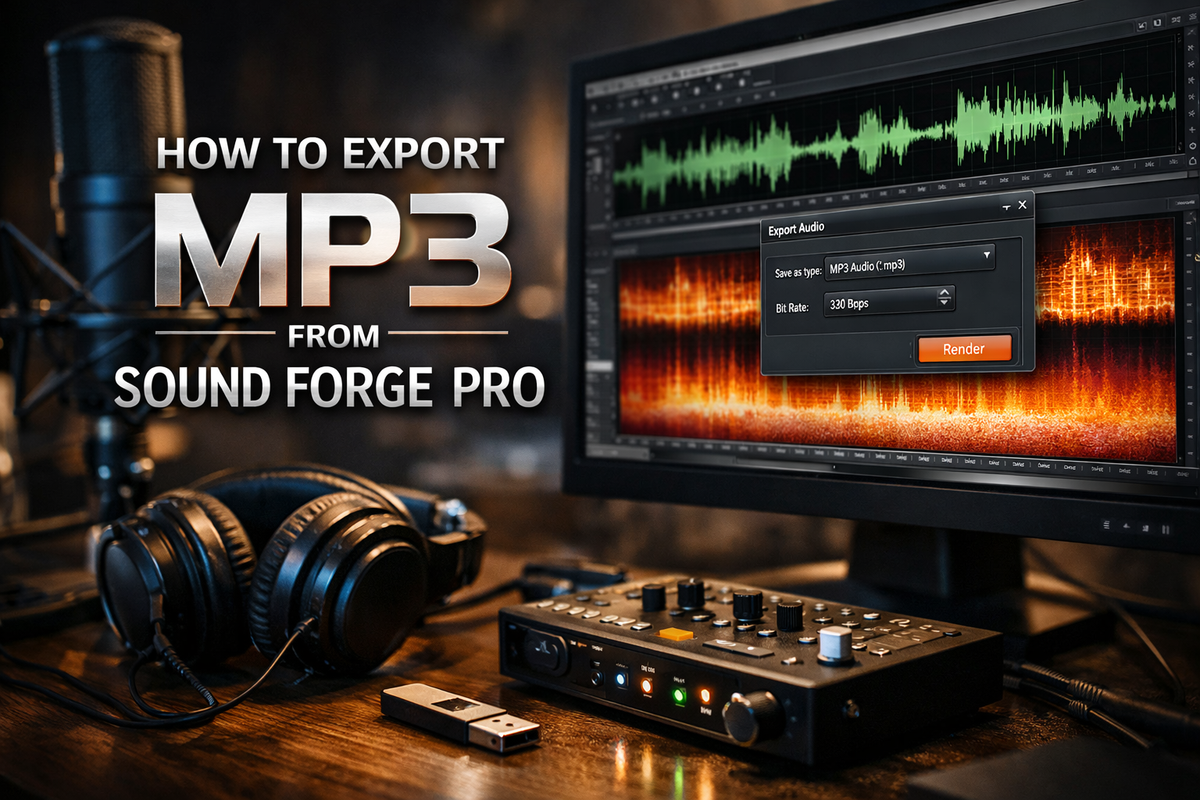
Exporting MP3 from Sound Forge Pro is File → Save As, pick MP3, done — except for the part where the default bitrate is 256 kbps and you wanted 320, or the MP3 option is greyed out on first install, or you hit Save instead of Save As and wondered why the file got smaller. Those are the parts most documentation skips.
I've exported hundreds of masters out of Sound Forge over the years — finished mixes, podcast edits, vinyl rips, voice-over deliverables — and the same three things trip people up every time. The actual workflow is fast once you know where the traps are.
The Basic Export: File → Save As
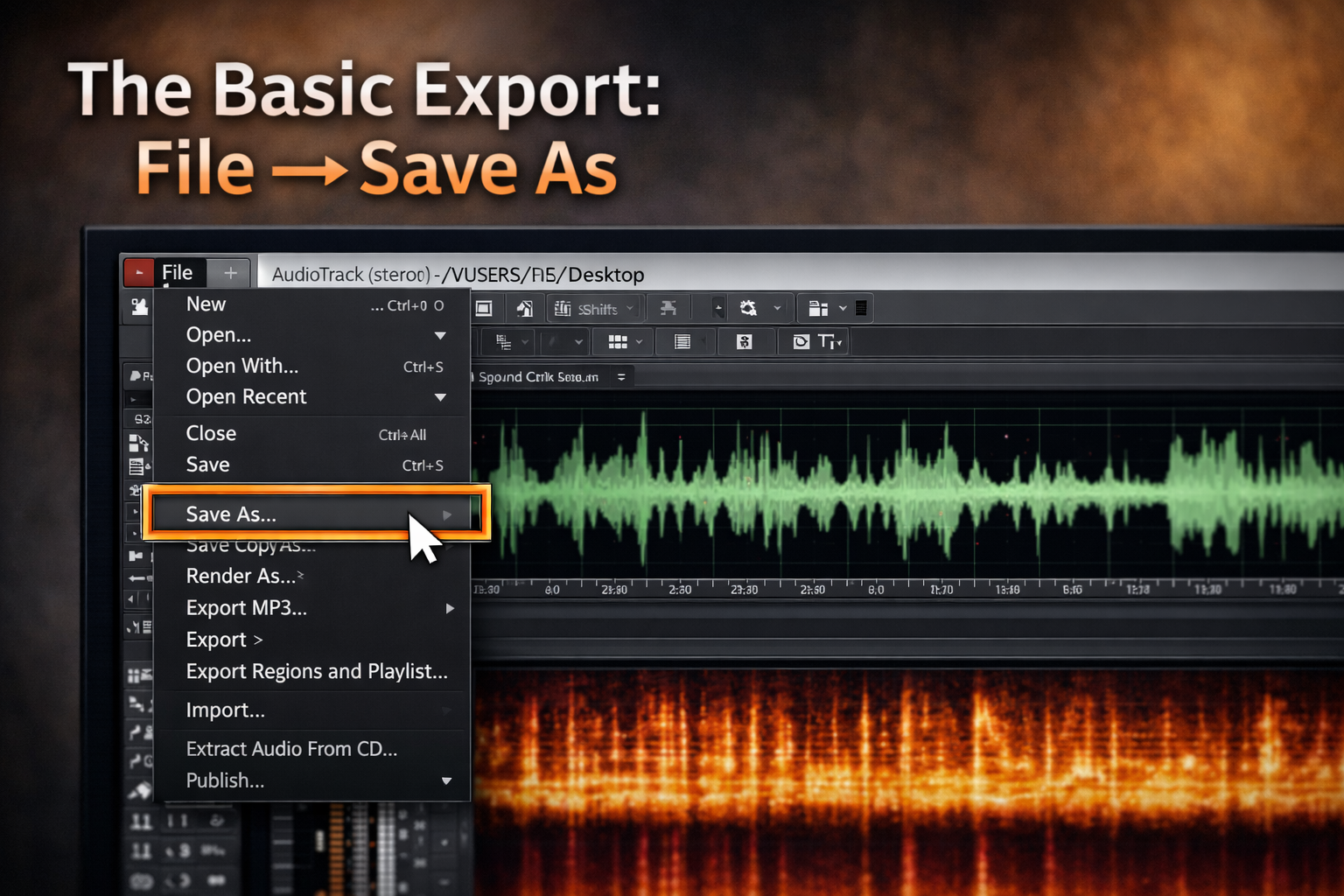
Open your finished file — if you're still trimming and editing, get that done first before committing to MP3. Go to File → Save As. In the Save As dialog, click the Save as type dropdown and select MP3 Audio. Before you click Save, look at the bottom of the dialog — there's a Format Settings button (sometimes shown as a dropdown next to the filename). Click it.
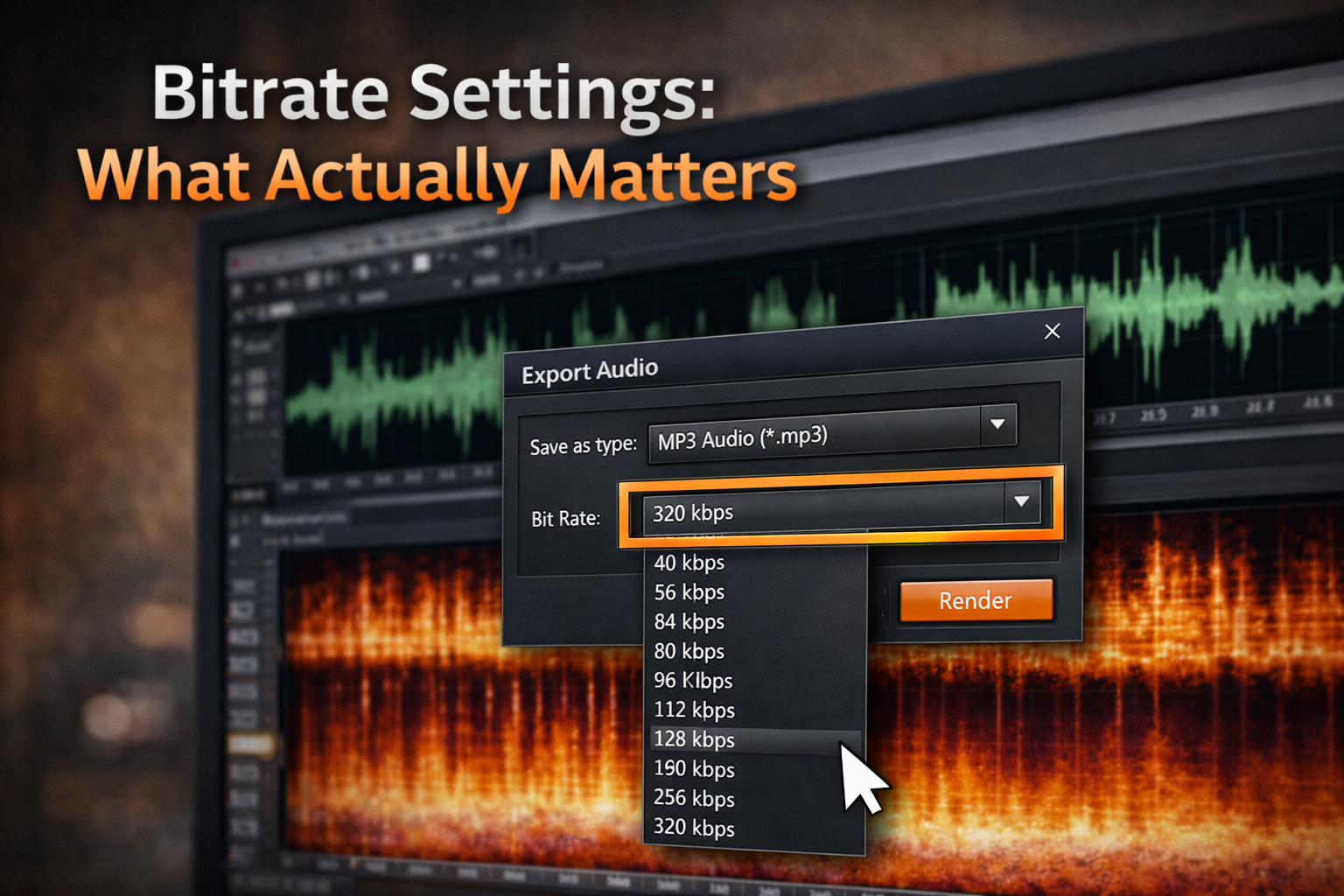
This is where you set bitrate, CBR vs VBR, and sample rate. The default template that loads is typically 256 kbps CBR at 44.1 kHz. If that's what you want, confirm and save. If you need 320 kbps — which for music delivery is the standard ceiling for MP3 — switch to the Custom settings and dial it in before confirming.
One thing worth knowing before you even get to Format Settings: if you save a file and it comes out as an .sfk instead of an .mp3, that's a waveform cache file — Sound Forge's display data, not audio. It means you saved without selecting MP3 as the type. Go back, File → Save As, make sure the dropdown says MP3 Audio, not the original format.
I once delivered a batch of 11 mastered tracks to a client at 256 kbps because I forgot to check Format Settings before clicking Save. Client noticed on track 3. Not a mistake I've made twice — now I always open Format Settings first, even when I'm in a hurry.
Bitrate Settings: What Actually Matters
Sound Forge Pro uses the Fraunhofer MP3 encoder — the same codec that's been in professional audio software since the early 2000s.
Bitrate — for music delivery, 320 kbps CBR is the standard. Files are around 8–9 MB per minute at this setting. For podcasts and voice work, 128 kbps mono (or 128 kbps stereo if you have music beds) is standard and cuts file size roughly in half compared to 320. For streaming platform delivery, 256 kbps CBR is acceptable — Spotify and Apple Music transcode your upload anyway, so going above 256 yields diminishing returns once the platform re-encodes it.
CBR vs VBR — CBR (constant bit rate) encodes every frame at the same bitrate. VBR (variable bit rate) allocates more data to complex passages and less to simple ones. VBR often produces smaller files at equivalent perceived quality, but some older players and broadcast systems expect CBR. For general music delivery use CBR 320 kbps. For podcast delivery where file size matters, VBR at a high quality setting works fine. The Custom tab in Format Settings gives you access to both.
Sample rate — leave it at 44.1 kHz unless you have a specific reason to change it. 48 kHz is for video work; 44.1 kHz is the CD-standard that every music player expects. If your source file is 48 kHz from a video project, Sound Forge will resample on export — that's fine.
For most of what I do — mastering tracks for independent release — 320 kbps CBR is the default I come back to. The file size difference between 256 and 320 is around 8 MB per track. Nobody has ever complained that my files were too large. Several clients have asked why a mix they got somewhere else sounded different on earbuds — it was 128 kbps, saved from a 320 original, three generations of re-encoding.
The Default Bitrate Trap: Save vs Save As
The trap is Ctrl+S on an MP3 file.
When you use plain Save on an MP3 file, Sound Forge re-encodes using the current default template — which is 256 kbps CBR unless you've changed it. If the file you opened was 320 kbps, it is now 256 kbps. The file will be slightly smaller. The quality loss is real but subtle at this bitrate range, and most people don't notice until they check the file properties and see the number changed.
The fix is to always use Save As when exporting to MP3, check Format Settings, confirm the bitrate, then save. Or better: work from a WAV master and only export to MP3 at the end. If you're doing multiple edits across sessions — open the file, fix something, close it, open it again tomorrow — work in WAV every time and do one final MP3 export when you're actually done. Every time you re-encode an MP3 to MP3 you lose a little generation quality, even at high bitrates.
The workflow that stuck for me after the 256-kbps client incident: keep a WAV of everything I've mastered, even after the project is "done." Disk space is cheap. Re-doing a master because the only copy was a 128 kbps MP3 someone re-encoded three times is not.
MP3 Option Greyed Out or Missing
On a fresh install, a handful of users hit the Save As dialog and find MP3 missing entirely or greyed out. I ran into this myself on a reinstall after switching machines — spent 20 minutes convinced the installation was broken before finding the fix.
First launch requires online activation — the Fraunhofer MP3 encoder in Sound Forge needs to register itself on first use. If you were offline the first time you tried to export MP3, the option may not have initialized. Connect to the internet, relaunch Sound Forge, try again.
Reset preferences — if it's still missing after an internet-connected launch, go to File → Reset All Preferences and Cached Data. Sound Forge restarts. After the restart the MP3 option typically reappears. The preference cache corrupts during install and a reset clears it — this is the fix that works for the majority of users who report it on the forums.
If neither works: uninstall fully using a third-party uninstaller like Revo (which clears registry entries the standard uninstaller leaves behind), reinstall, activate online. That resolves the remaining cases.
Custom Templates: Save Your Bitrate Settings
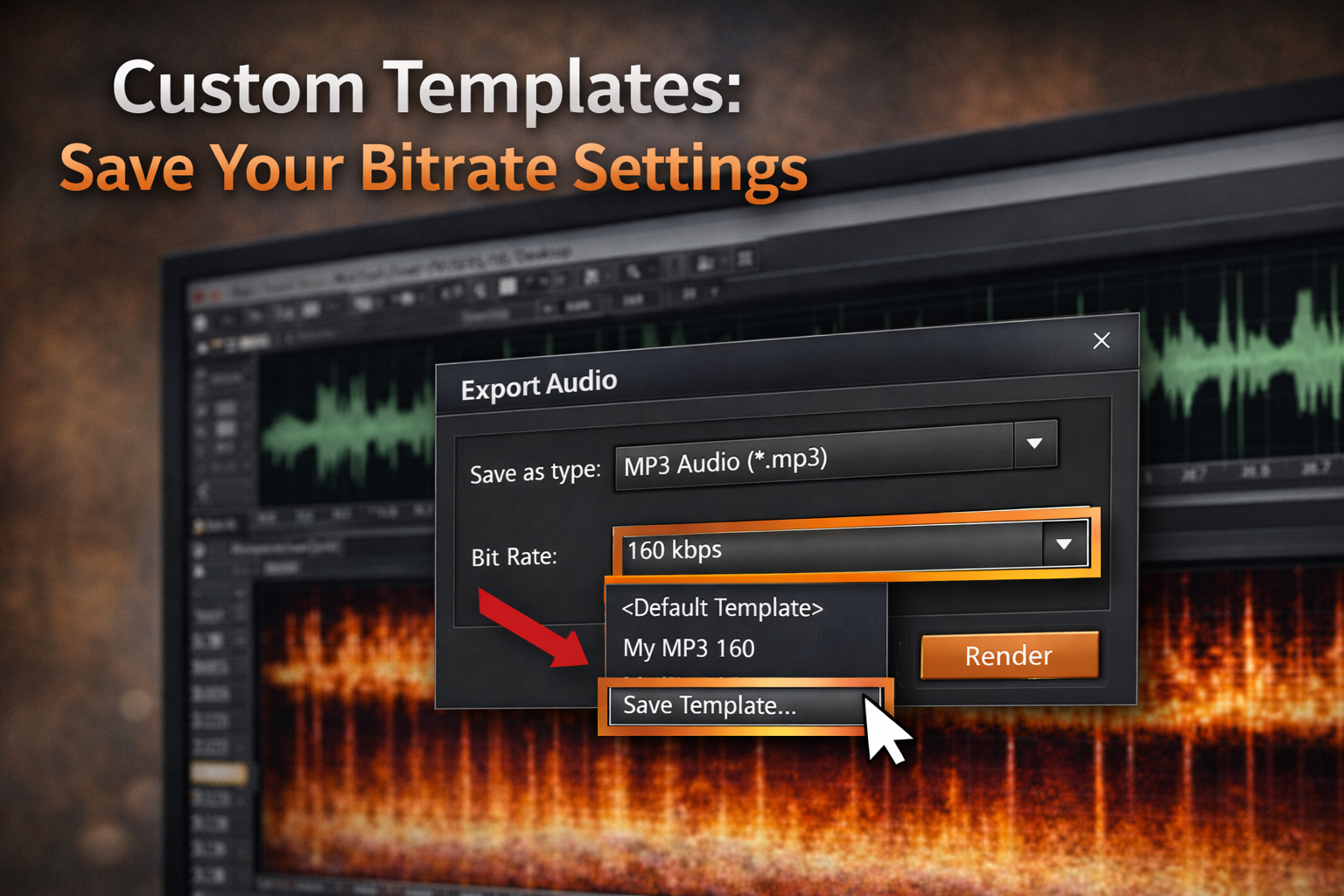
If you export at 320 kbps CBR every time, you shouldn't have to configure Format Settings on every export. Sound Forge lets you save custom templates that appear in the Save As type dropdown.
In the Format Settings dialog, configure your preferred settings — 320 kbps, CBR, 44.1 kHz, stereo, highest quality — then click Save As within that dialog to name and save the template. Name it something obvious like "MP3 320 CBR 44.1." From then on it appears in the format dropdown in Save As and you can select it without digging into settings every time.
Worth doing for every format you use regularly: 128 kbps mono for voice-over delivery, 320 kbps for music, 256 kbps for podcast. Takes three minutes to set up once — every export after that is two clicks instead of six.
Exporting Multiple Files as MP3: Batch Converter
If you have a session of separate takes or regions that all need to go out as MP3 — stems, a split podcast, a catalogue of samples — the Batch Converter handles it. Find it under Tools → Batch Converter.
Add your files to the list, set the output format to MP3 with your preferred settings, point it at an output folder, and let it run. The Batch Converter applies whatever format settings you configure uniformly across all files — bitrate, sample rate, all of it. For a run of 23 vinyl rips I processed last year, it saved about 40 minutes compared to exporting them one by one. Source files at varying sample rates or bit depths get converted automatically — you don't need to normalize everything to 44.1/16-bit before running it.
When Not to Export as MP3
MP3 is a delivery format, not a working format. If you're handing off a master to a mastering engineer, uploading to a distribution platform that accepts WAV (most do), or archiving your own work — don't use MP3.
Spotify accepts WAV and FLAC. Apple Music accepts WAV, AIFF, and Apple Lossless. Both platforms transcode your upload to their own delivery formats at their own quality targets. Giving them a 320 kbps MP3 instead of a WAV means they're starting from an already-compressed source — the transcoding artifacts compound. Upload WAV when the platform accepts it. If you're not sure yet whether Sound Forge Pro fits your mastering workflow at all, the full review covers what the tool is actually built for.
MP3 is appropriate when: the recipient specifically needs MP3, you're delivering to a system with storage or bandwidth constraints, you're sending a reference copy for approval (not final delivery), or the platform only accepts MP3. For everything else, WAV or FLAC. The Spotify loudness normalization spec targets -14 LUFS integrated — useful to check before any export, not just MP3.
Every track I've released independently went to distribution as WAV. The MP3 version — if a label or sync placement asked for one — got exported last, from the WAV master, once. Not from the WAV that came from the MP3 that came from the original WAV. Once.
Frequently Asked Questions
How do I export MP3 from Sound Forge Pro?
File → Save As → change the Save as type dropdown to MP3 Audio → click Format Settings to set bitrate (320 kbps CBR for music delivery) → Save. Don't use plain Save/Ctrl+S — that re-encodes at the default 256 kbps template without asking.
Why is the MP3 option greyed out in Sound Forge Pro?
Two common causes: the Fraunhofer encoder didn't activate because you were offline on first launch (connect to internet and relaunch), or the preference cache is corrupted (File → Reset All Preferences and Cached Data). If those don't fix it, uninstall with Revo Uninstaller to clear registry entries, then reinstall.
What bitrate should I use for MP3 export in Sound Forge Pro?
320 kbps CBR for music. 128 kbps mono for voice-over and podcasts. 256 kbps CBR for streaming platform delivery where the platform transcodes anyway. The default in Sound Forge is 256 kbps — change it in Format Settings if you need 320.
Why does my MP3 file get smaller after saving in Sound Forge?
You used Save instead of Save As. Plain Save re-encodes using the current default template, which is 256 kbps. If your original was 320 kbps it will be re-encoded down. Always use Save As to control the bitrate on MP3 exports.
Can I export multiple files as MP3 at once in Sound Forge Pro?
Yes — Tools → Batch Converter. Add files, set output format to MP3 with your bitrate settings, set an output folder, run. It handles batch MP3 encoding across any number of files with consistent settings.
Should I export my master as MP3 or WAV?
WAV if the recipient or platform accepts it. MP3 is lossy — every encode introduces compression artifacts that can't be undone. For distribution platforms like Spotify and Apple Music, upload WAV (they transcode it themselves). Use MP3 for delivery when the destination specifically requires it, for reference files, or for bandwidth-constrained situations.
How do I save MP3 export settings in Sound Forge Pro?
In the Format Settings dialog during Save As, configure your bitrate and other settings, then click the Save As button inside that dialog to create a named template. It will appear in the format dropdown on future Save As operations.
Can I export MP3 during the Sound Forge Pro free trial?
Yes — the 15-day trial is fully unrestricted. MP3 export at any bitrate works identically to the paid version. No watermarks, no format limitations.