How to Cut and Trim Audio in Sound Forge Pro
Sound Forge Pro is fundamentally a destructive editor. When you cut or trim something, the waveform changes immediately — there's no timeline of clips to shuffle around, no non-destructive layer underneath. That's the design, and once you understand it, the editing workflow is fast and precise in a way that DAW-style editing isn't.
Three operations cover most of what people mean when they say "cut and trim": removing a section from the middle, cropping everything outside a selection, and deleting silence from the edges. They use different commands and have different results. Knowing which one to reach for saves a lot of unnecessary undoing.
Making a Selection First
Every cut and trim operation starts with a selection. Sound Forge uses the Edit tool — the default cursor — for this. Click and drag across the waveform to select a range. The selected region highlights, and the Selection Start, End, and Length values update in the status bar at the bottom.
Shift+click extends an existing selection to wherever you click. If you've made a rough selection and want to push the end point further right without re-dragging from scratch, Shift+click is the faster move.
Double-click the status bar fields to type exact values. If you need to trim to a precise timecode — say, cut exactly from 00:01:23.450 to 00:01:45.000 — type the values directly into Selection Start and Selection End rather than trying to drag to that precision in the waveform.
Ctrl+A selects everything in the active data window. Useful before a Trim/Crop to confirm you have a full-file selection, or to select all before applying a process.
Zero crossing snap is on by default and prevents clicks at edit points. When you drag a selection, the edges automatically snap to the nearest zero crossing in the waveform — a point where the audio signal crosses zero amplitude. Cuts made at zero crossings don't produce audible pops. Toggle it with Ctrl+B (Options → Snapping → Crossings). Turn it off when you need to position an edit point with sample-level precision and the zero crossing is slightly off from where you need it — zooming in first helps you judge whether the snap position is acceptable.
Cut: Remove and Keep on Clipboard
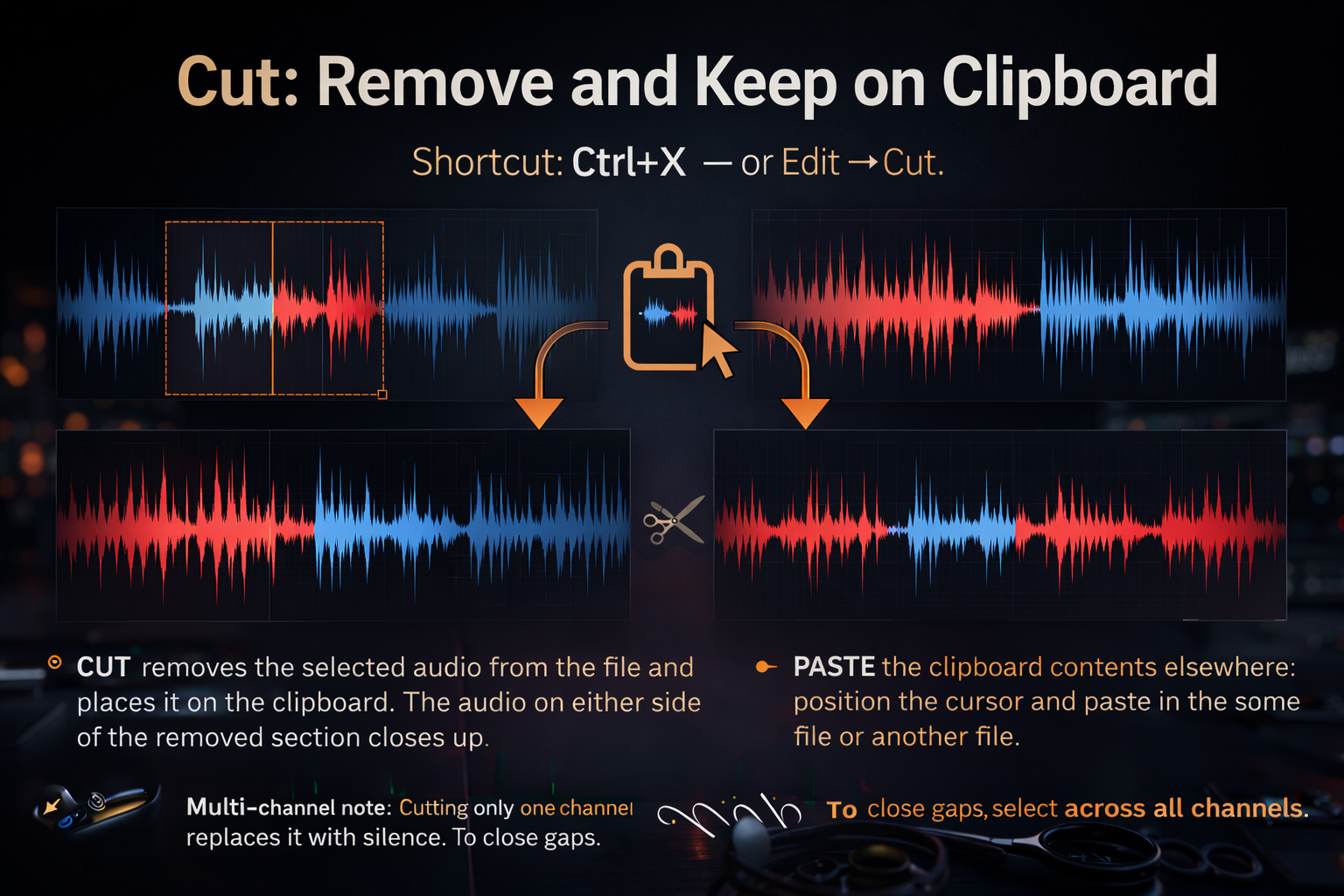
Shortcut: Ctrl+X — or Edit → Cut.
Cut removes the selected audio from the file and places it on the clipboard. The audio on either side of the removed section closes up — the file gets shorter by the length of the selection. Whatever was on the clipboard before gets replaced.
This is the right operation when you want to remove a section and potentially paste it somewhere else — at a different position in the same file, or into a different file. It's also the operation for moving a section: cut it, position the cursor where you want it, paste.
One thing to know about cutting from multichannel files: if you cut from a single channel rather than all channels, that channel gets replaced with silence at the cut point rather than closing up. The channels in a multichannel file have to stay equal in length. If you want the gap to close, select across all channels before cutting.
Delete: Remove Without Copying
Shortcut: Delete key — or Edit → Delete.
Delete removes the selected audio and discards it. Nothing goes to the clipboard. The file shortens by the length of the selection, same as Cut — the difference is only whether the removed audio is available to paste afterward.
If you're cleaning up a file and don't need to reuse the removed section, Delete is the cleaner operation. It doesn't replace your clipboard contents, so whatever you last copied stays available.
Trim/Crop: Keep Only the Selection
Shortcut: Ctrl+T — or Edit → Trim/Crop. Full documentation at soundforge.helpmax.net.
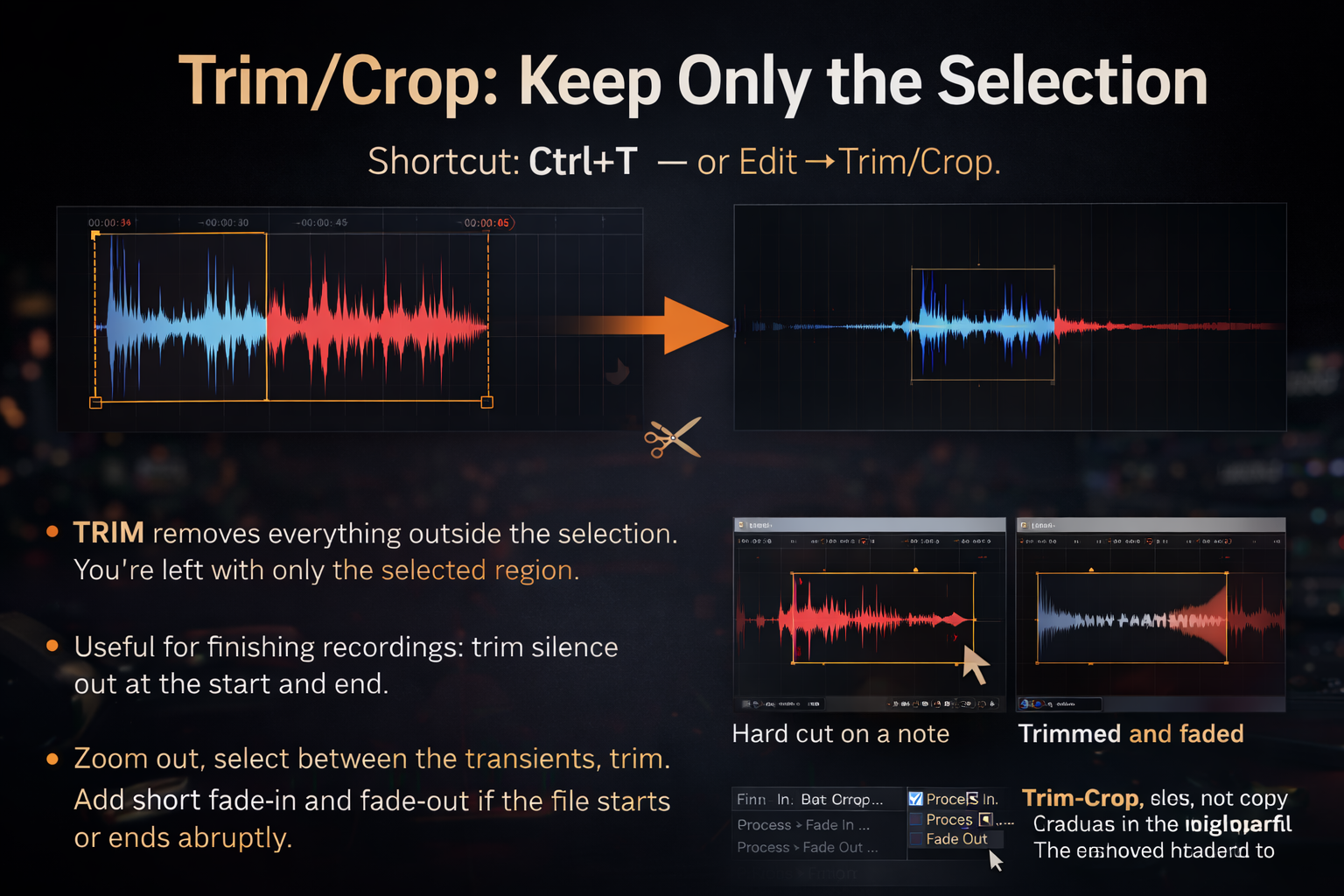
Trim/Crop is the inverse of Delete. Instead of removing the selection, it removes everything outside it — all audio before the selection start and all audio after the selection end gets discarded. What remains is only the selected region.
This is the most common trimming operation for finishing a recording. You've captured a take, there's silence or noise at the beginning and end, you select the usable audio, and Ctrl+T crops the file to exactly that selection. The result is a file that starts and ends exactly where your selection did.
Trim/Crop does not copy anything to the clipboard. The removed material is gone.
The workflow I use most often on a finished stereo mix: zoom out to see the whole file, drag a selection from the first transient to the final decay, then Ctrl+T. Takes about four seconds. If the selection edges are off, Ctrl+Z undoes it completely and you try again.
After trimming, if the file now starts or ends abruptly — a hard cut on a note or mid-reverb tail — add a short fade. Process → Fade In and Process → Fade Out apply a linear fade to the current selection. Select two or three hundred milliseconds at the start, apply Fade In; same at the end for Fade Out. Keeps the edges clean without touching the body of the recording. If you're trimming a file that was just recorded, the recording guide covers the workflow from capture to this point.
Auto Trim/Crop: Remove Silence Automatically
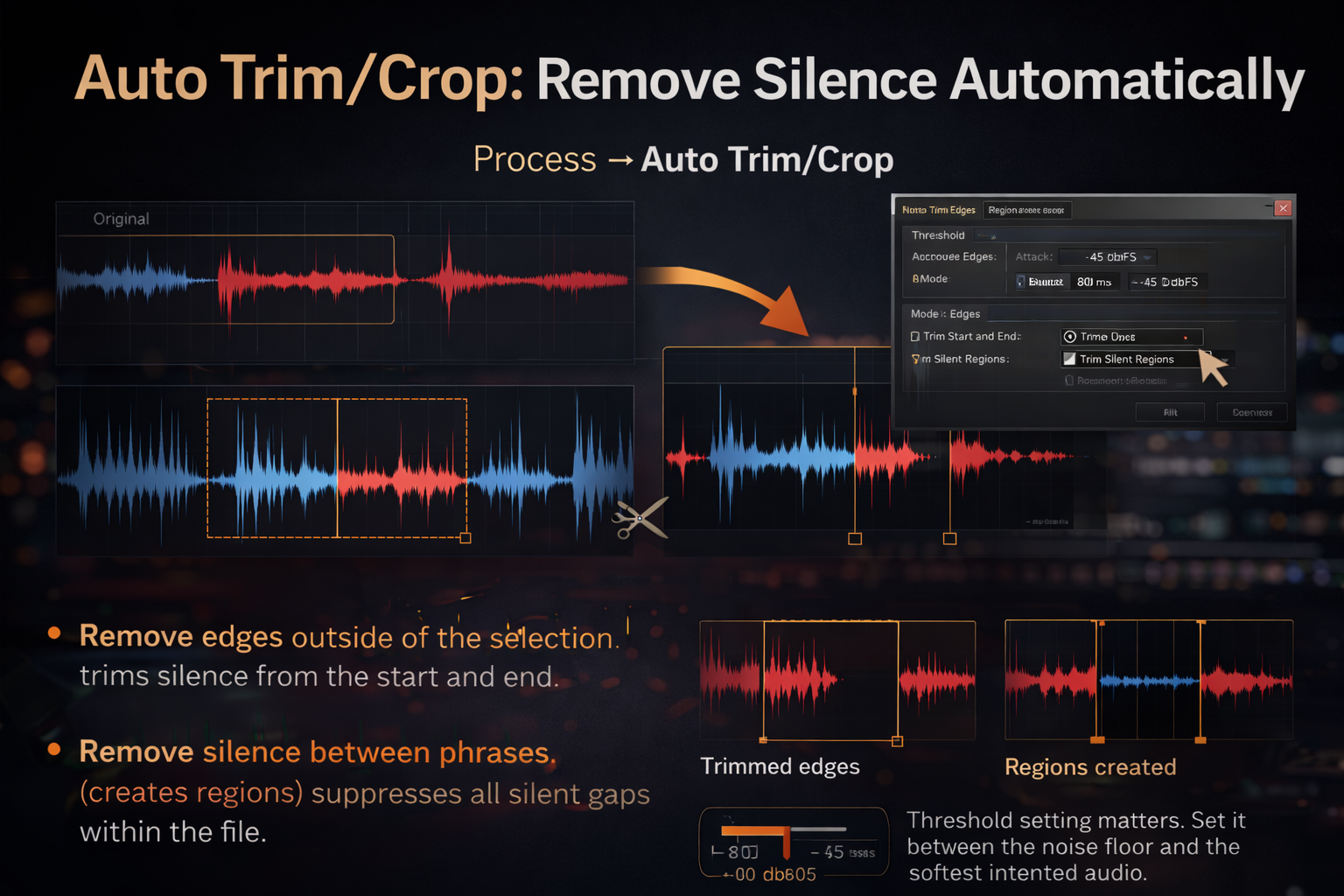
Manual Trim/Crop works well when you can hear and see the useful content clearly. When you're processing a batch of recordings with inconsistent amounts of lead-in silence — digitized tapes, captured streams, field recordings — Auto Trim/Crop handles the trimming automatically based on a signal threshold.
Access it via Process → Auto Trim/Crop. The dialog gives you threshold controls (the level at which content is considered "audio" vs "silence"), attack and release settings, and several mode options:
Remove edges outside of the selection trims silence from the start and end of the file (or the current selection). This is the basic head/tail trim — the equivalent of doing manual Trim/Crop but with the software finding the edit points based on signal level rather than your drag.
Remove silence between phrases (creates regions) goes further — it finds all the silent gaps within the file and either removes them or marks them as regions. Useful for a recording of multiple separate takes or phrases with silence between them.
The threshold setting matters. Too high and the tool cuts into the attack of quiet material. Too low and it leaves silence it should have removed. Set it relative to your noise floor: if the room has audible hiss at -40 dBFS, set the threshold above that but below the softest intended audio. There's no universal right value — it depends on the recording.
A note on zero crossings and Auto Trim/Crop: the auto-trim result may not land exactly on a zero crossing. If you're preparing samples for a sampler or any application where a click at the edit point would matter, check the trimmed edges zoomed in and use Edit → Selection → Snap to Zero Crossing to clean them up if needed.
Splitting a File at a Point
Cut, Delete, and Trim/Crop all work on selections — you have to define a range first. If you're coming from Vegas Pro or a DAW and looking for a "split at cursor" operation that divides the file at a single point, Sound Forge handles this differently depending on the editing mode.
In event-based mode, position the cursor and press S to split the event at that point. Two clips, same audio, edit point between them. From there you can trim the edges or delete one side.
In default destructive mode there's no direct split-at-cursor command the same way. The closest equivalent: position your cursor at the split point, use Edit → Split to create a region boundary, then work with the resulting regions. For straightforward front/back trimming, most people just make a selection covering what they want to keep and Ctrl+T — it's two steps but faster than hunting for a split function that works the way Vegas does.
Zoom Before You Edit
Sound Forge's edit resolution goes to the sample level. At the default zoom level you're looking at seconds or minutes of audio compressed into pixels, which makes precise selection difficult. Zoom in to the edit point before making the selection.
Mouse wheel zooms in and out horizontally. You can also drag in the overview bar — the narrow waveform strip at the top of the data window — to navigate to a section without losing the full-file perspective. The Magnify tool (keyboard shortcut from the Tools toolbar) lets you drag to zoom into a specific region.
A fast editing workflow: zoom out to navigate, zoom in to set selection edges precisely, zoom back out to verify the result before committing. Ctrl+Z undoes immediately if the edit isn't right.
Event-Based Editing: Non-Destructive Mode
Sound Forge Pro also has an event-based editing mode, accessible via the Event tool in the toolbar. In this mode, you're working with clips on a timeline-like view rather than editing the waveform directly. Trims made in event mode are non-destructive — the original audio stays intact, and you're only adjusting where the clip starts and ends.
Most Sound Forge workflows use the default destructive mode — it's faster for mastering and restoration work where you're refining a single finished file. Event mode is useful when you're assembling several clips, need to adjust timing without committing, or want to audition different edit points before making them permanent. Switch between modes with the tool buttons in the toolbar; the Edit tool is destructive, the Event tool is non-destructive. For more on where Sound Forge sits relative to full DAWs on this question, the Sound Forge Pro review covers it in detail.
Frequently Asked Questions
What's the difference between Cut and Trim/Crop in Sound Forge Pro?
Cut (Ctrl+X) removes the selected region and places it on the clipboard — the file gets shorter where you made the cut. Trim/Crop (Ctrl+T) does the opposite: it keeps only the selected region and removes everything outside it. Cut is for removing a section from the middle; Trim/Crop is for isolating a section by discarding the surrounding audio.
How do I remove silence from the beginning and end of a recording?
Two approaches. Manual: drag a selection from the first real audio to the last, then press Ctrl+T to crop to that selection. Automatic: use Process → Auto Trim/Crop, set the threshold above your noise floor, and let Sound Forge find the edit points. Manual gives more control; Auto Trim/Crop is faster for batch work or when the silence level is consistent.
Why does my cut produce a click or pop?
The edit point isn't at a zero crossing. Enable zero crossing snap with Ctrl+B (Options → Snapping → Crossings) and redo the cut. If snap is already on and you're still getting a click, zoom in to the edit point — the zero crossing snap may have placed the edge in an area with low but non-zero amplitude. Use Edit → Selection → Snap to Zero Crossing to force the selection edge to the nearest true zero crossing.
Can I undo a cut or trim in Sound Forge Pro?
Yes — Ctrl+Z undoes the last action. Sound Forge supports multiple levels of undo, so you can step back through a series of edits. Redo is Ctrl+Shift+Z. If you haven't bought yet, everything here works identically in the 15-day free trial — undo included, no restrictions.
How do I cut audio at a precise timecode in Sound Forge Pro?
Double-click the Selection Start field in the status bar at the bottom of the data window and type the exact timecode value. Do the same for Selection End. Once the selection matches your target range, use Cut, Delete, or Trim/Crop as needed. This is more reliable than trying to drag to a precise position in the waveform.
What does Trim/Crop do to a multichannel file?
Trim/Crop works on all channels simultaneously — whatever is outside the selection gets removed across the entire file, keeping all channels equal in length. If you make a selection on a single channel and Trim/Crop, the result still applies to the full file. Sound Forge doesn't allow channels in a multichannel file to have different lengths.
Is there a way to split audio at the cursor in Sound Forge Pro?
In event-based mode: yes — press S with the cursor positioned at the split point. In default destructive mode there's no exact equivalent. The practical workaround is to make a selection covering what you want to keep and press Ctrl+T, which achieves the same result for most trimming scenarios. If you need to split a file into two separate files at a specific point, use the selection start as a boundary, copy one half to a new window with Ctrl+E (Edit → Paste to New), and Trim/Crop each half.